

Dashboard overview
Open the Userplane app in Slack and click the Home tab. You’ll see:- Recent Recordings — the three most recent recordings in your workspace, with thumbnails and links to open them in Userplane.
- Recent Links — the three most recent recording links you’ve created.
- Create Link — a button to open the inline link creation form.
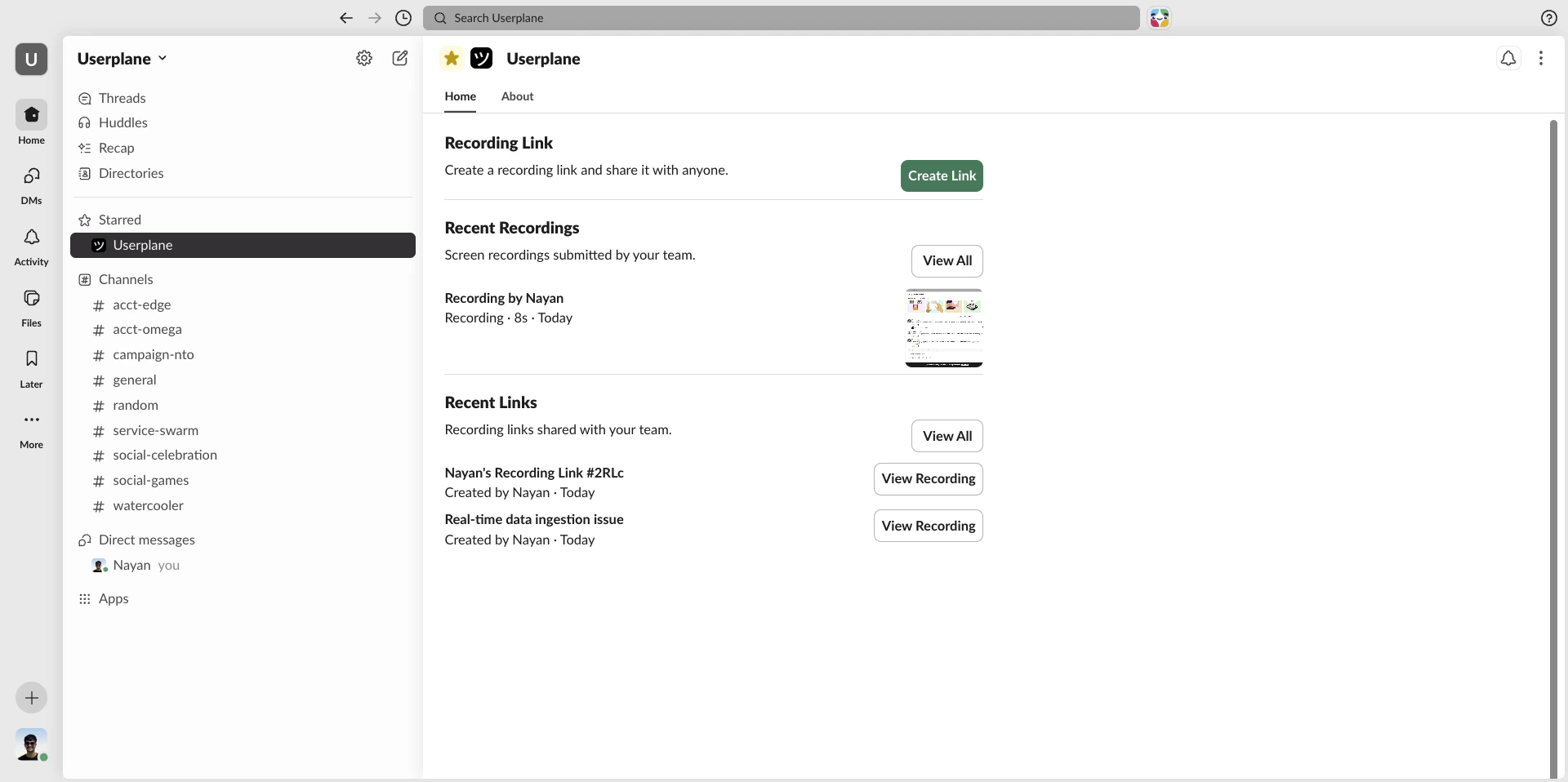
Userplane App Home — connected view
The App Home shows data specific to your account. If your email isn’t matched to a workspace
member, you’ll see an access prompt instead.
Creating a link
1
Click Create Link
In the App Home, click Create Link.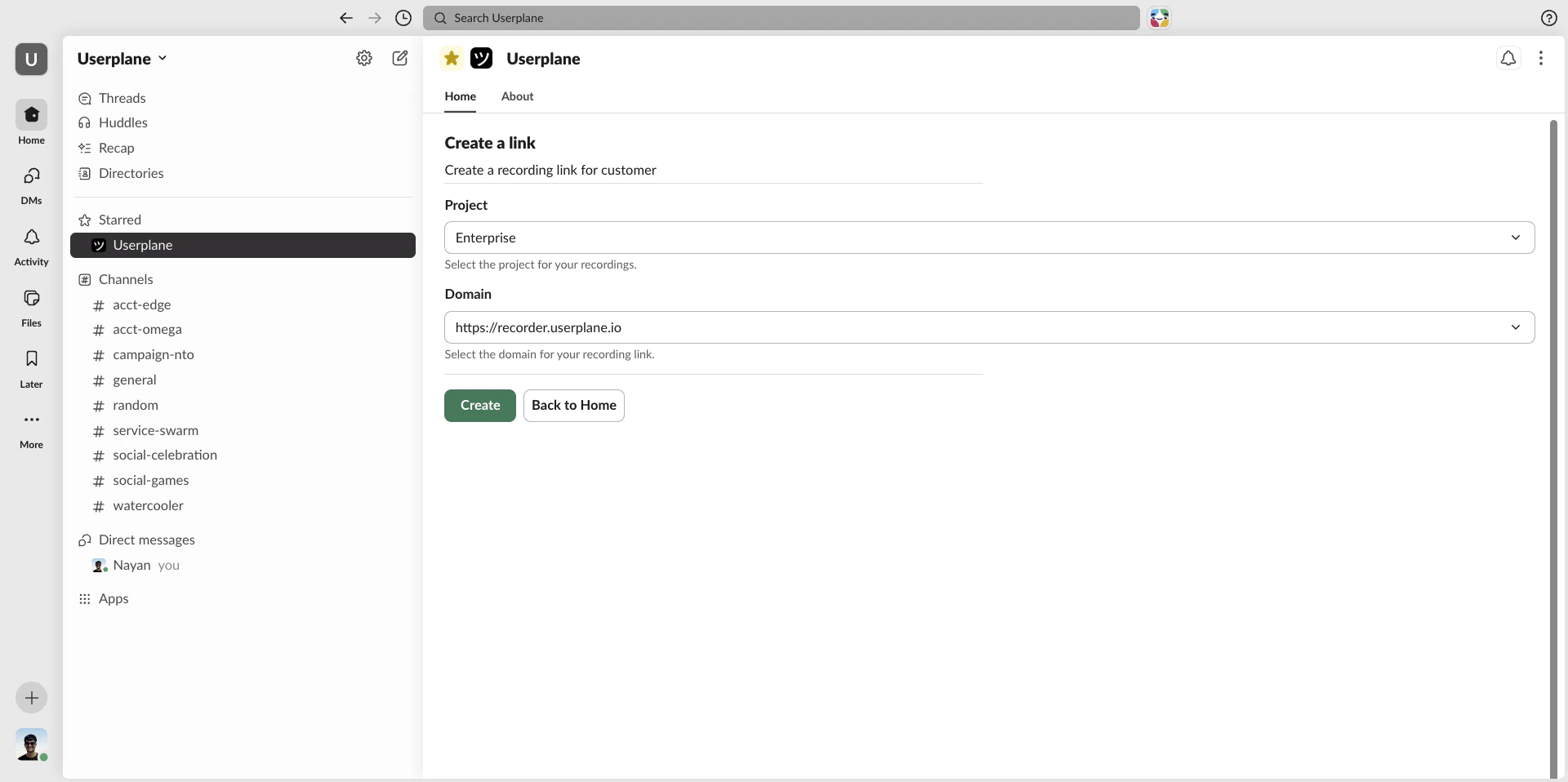
Create Link button in App Home
2
Select a project and domain
Choose the Project and Domain from the dropdowns. Your last selection is remembered for the next time.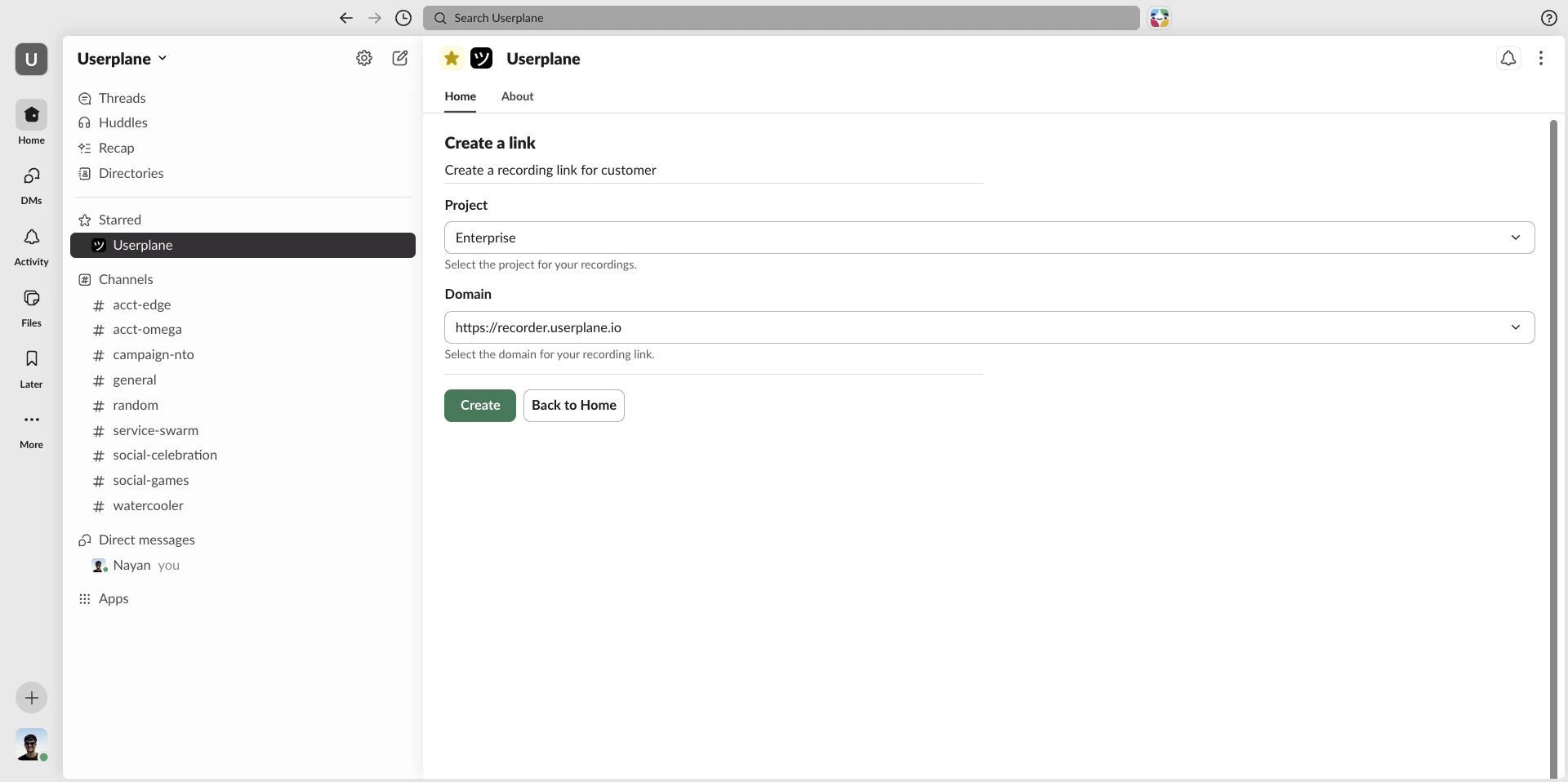
Inline create link form
3
Click Create
Click Create. The link is generated and the App Home updates to show a success view with the new link URL.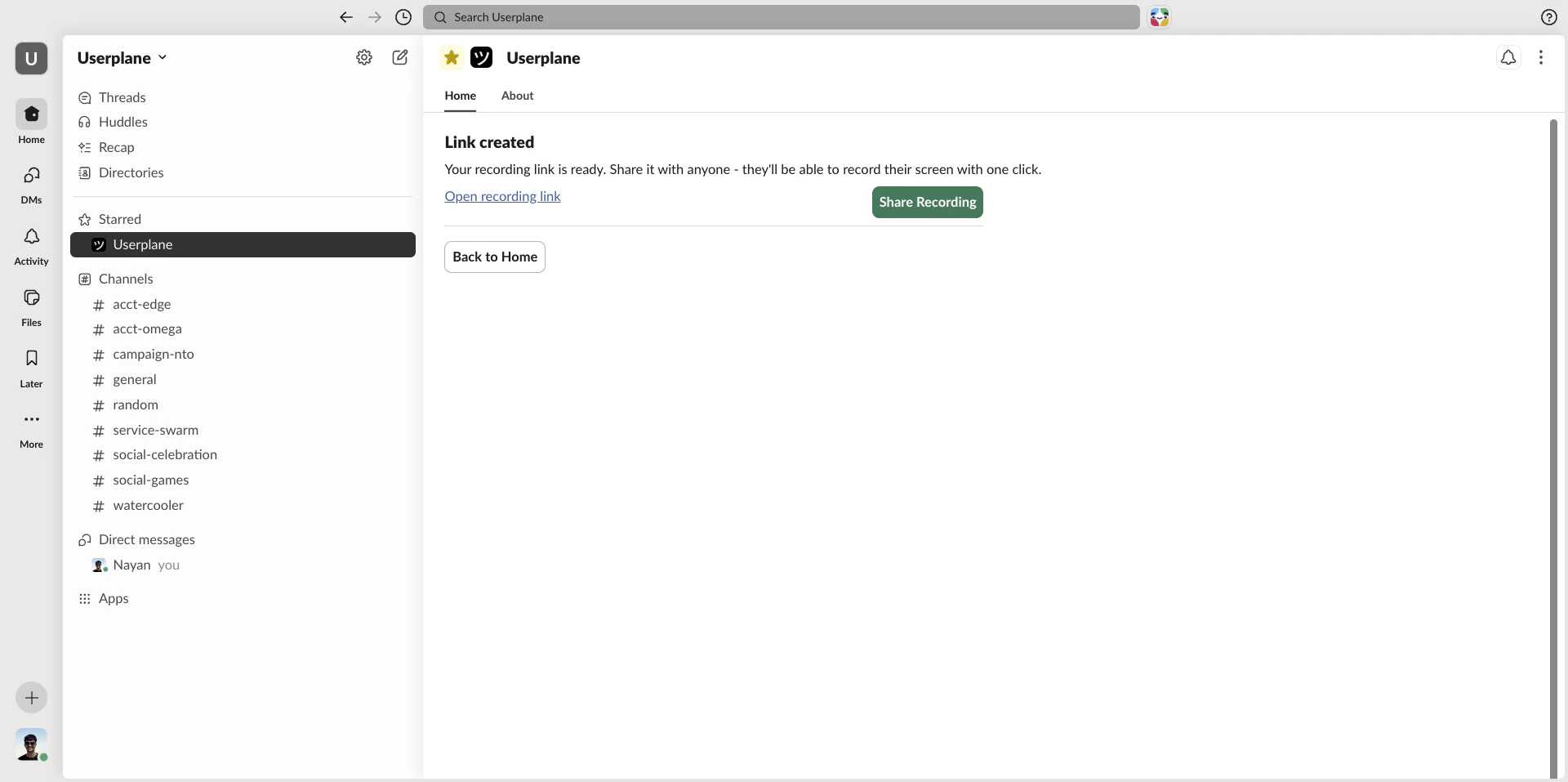
Link created — success view
Browsing recordings
1
Click View All in the Recordings section
From the App Home, click View All under Recent Recordings to open the full browse view.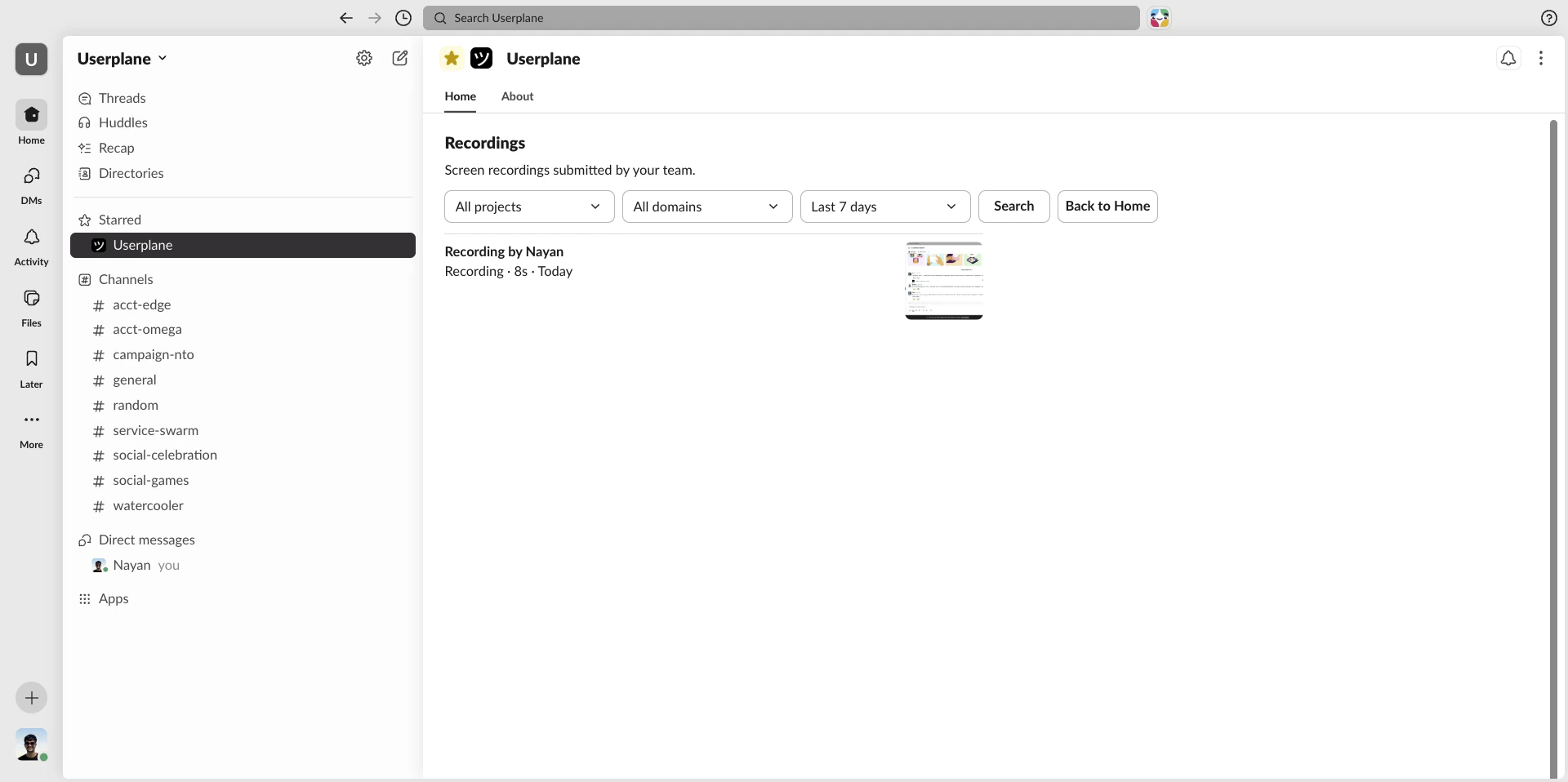
Browse recordings view
2
Apply filters
Use the filter dropdowns to narrow by Project, Domain, or Date Range (last 7 days, last 30 days, or all time).
3
Click Go
Click Go to apply your filters. Results update in the same view.
4
Navigate pages
Use the Next and Previous buttons to move through paginated results (10 recordings per page).
5
Open a recording
Click any recording to open it in Userplane for full playback and inspection.
Browsing links
1
Click View All in the Links section
From the App Home, click View All under Recent Links.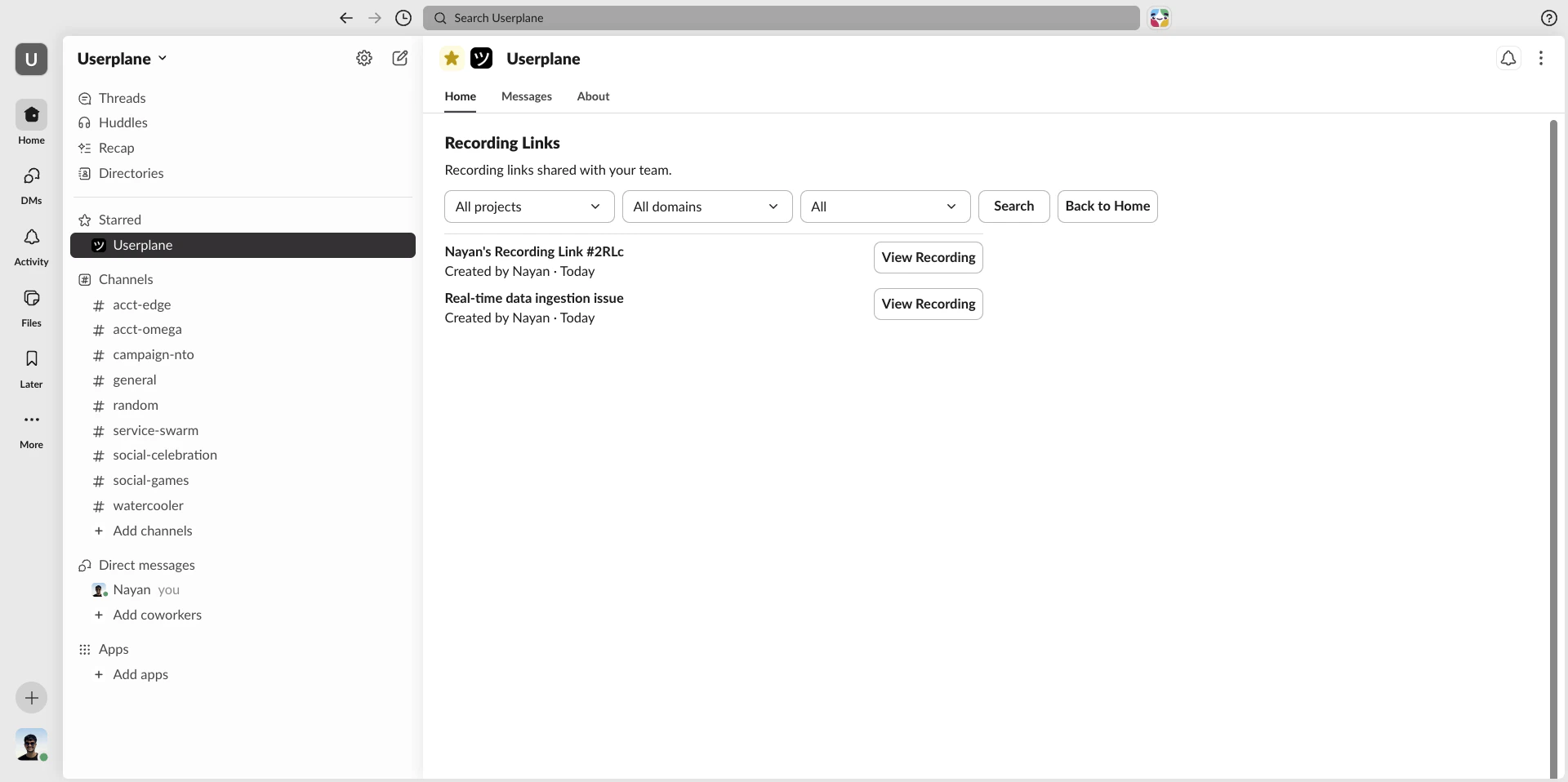
Browse links view
2
Apply filters
Filter by Project, Domain, or Status (active, expired, or all).
3
Click Go
Click Go to apply your filters.
4
Navigate pages
Use Next and Previous to page through results.
Viewing recordings
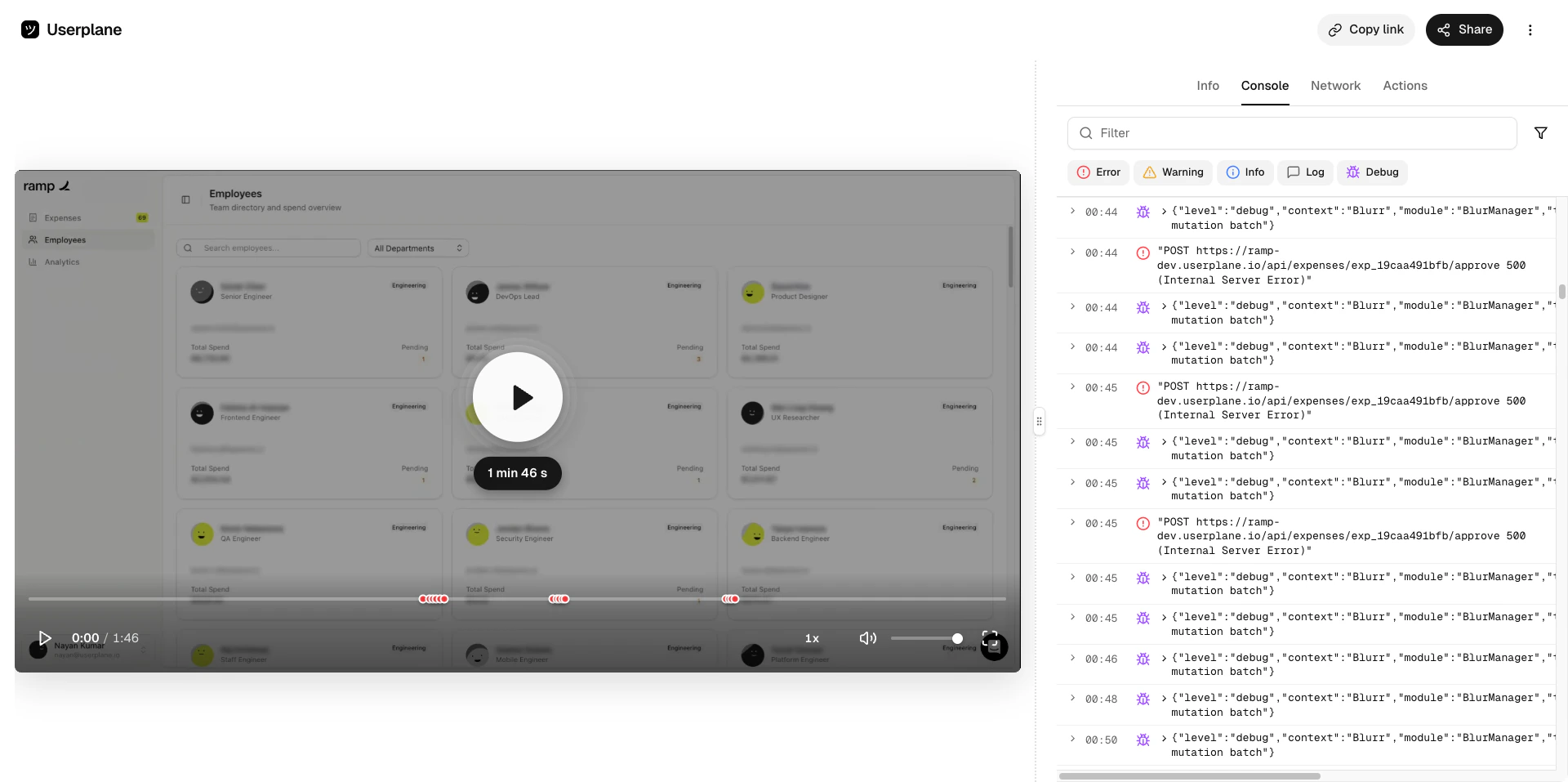
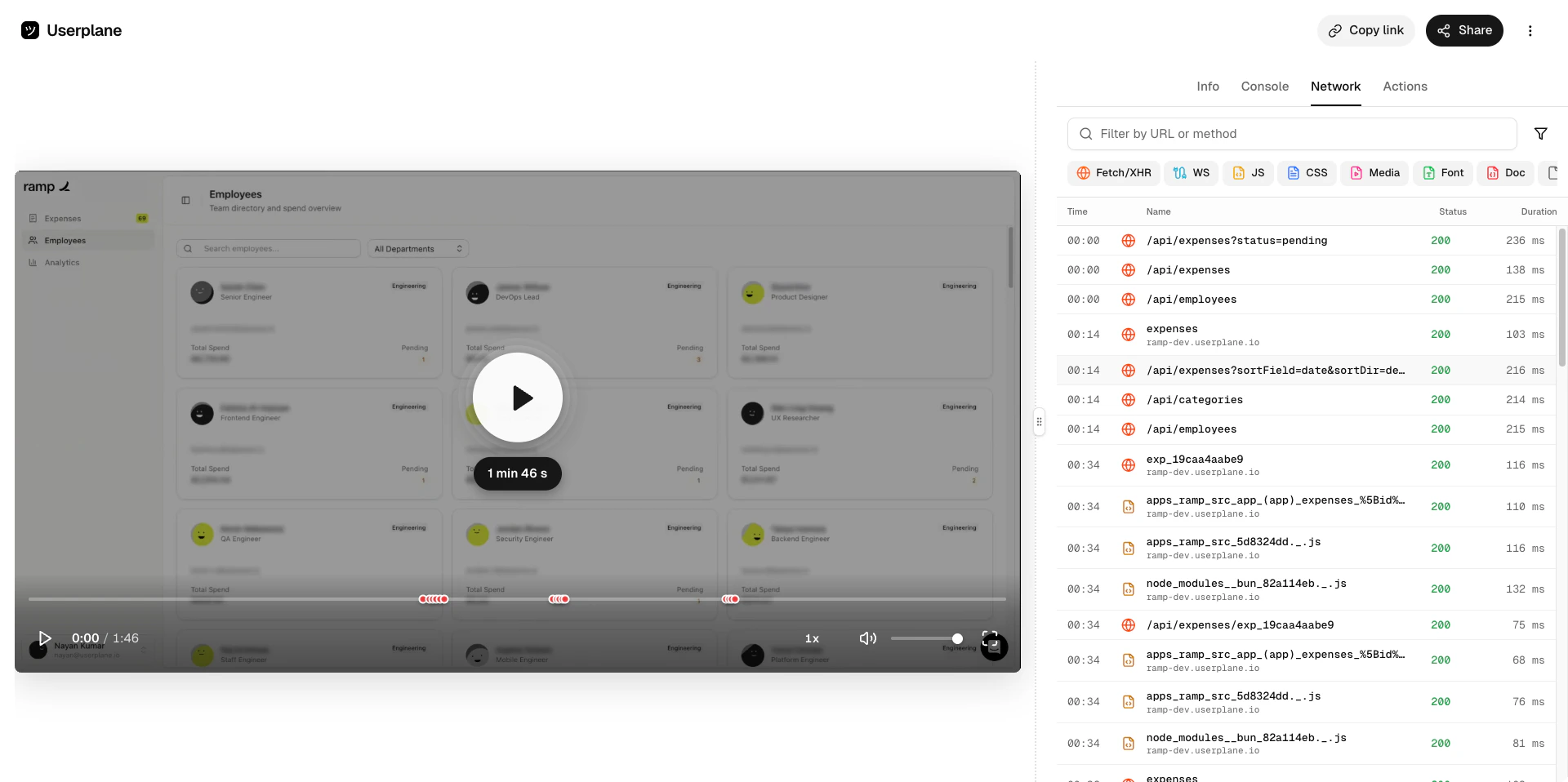
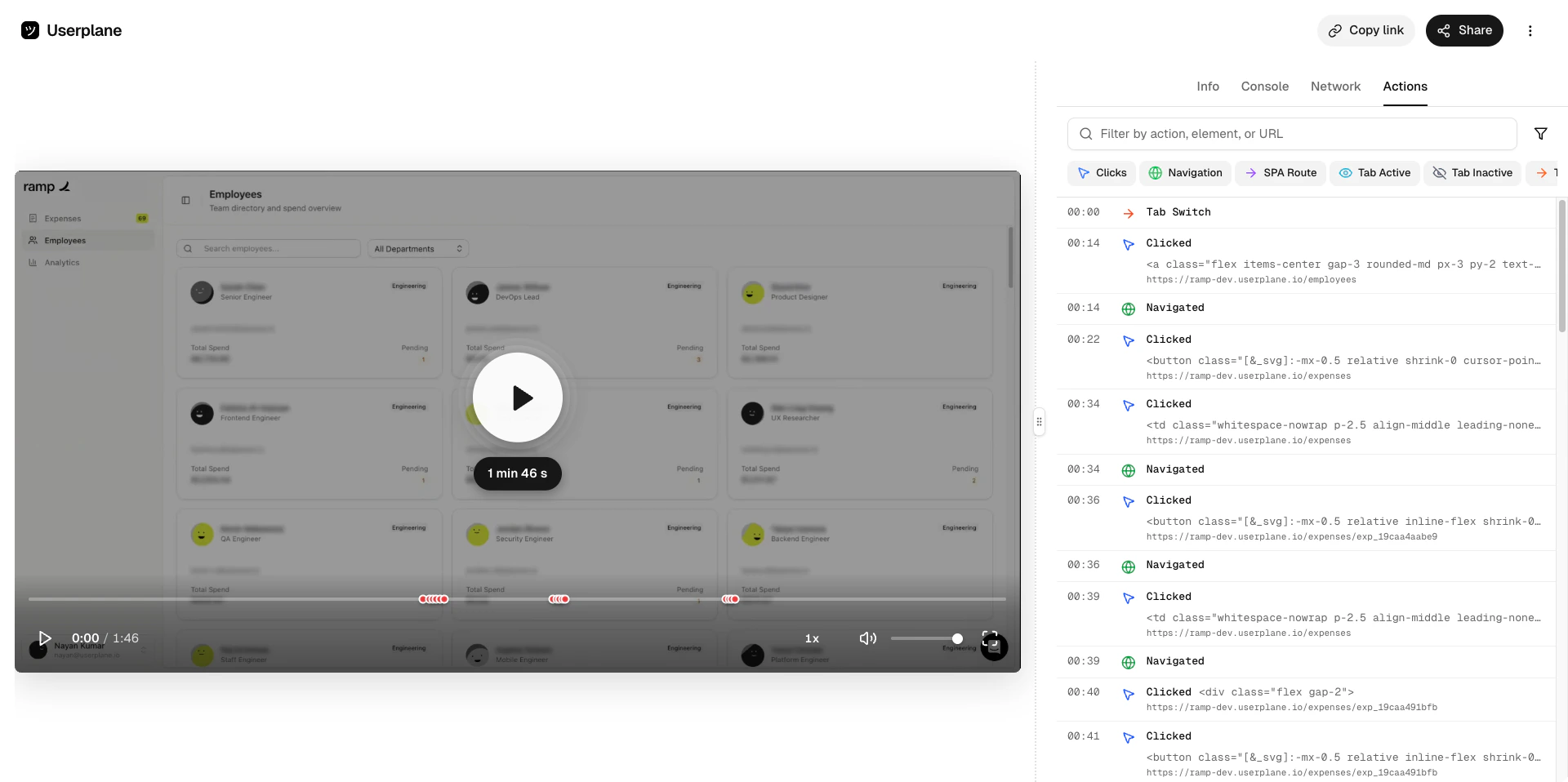
When a customer completes a recording, click it from the App Home or browse view to open it in Userplane. You’ll have access to the full playback view with synchronized session data.- Recording
- Console logs
- Network logs
- Actions
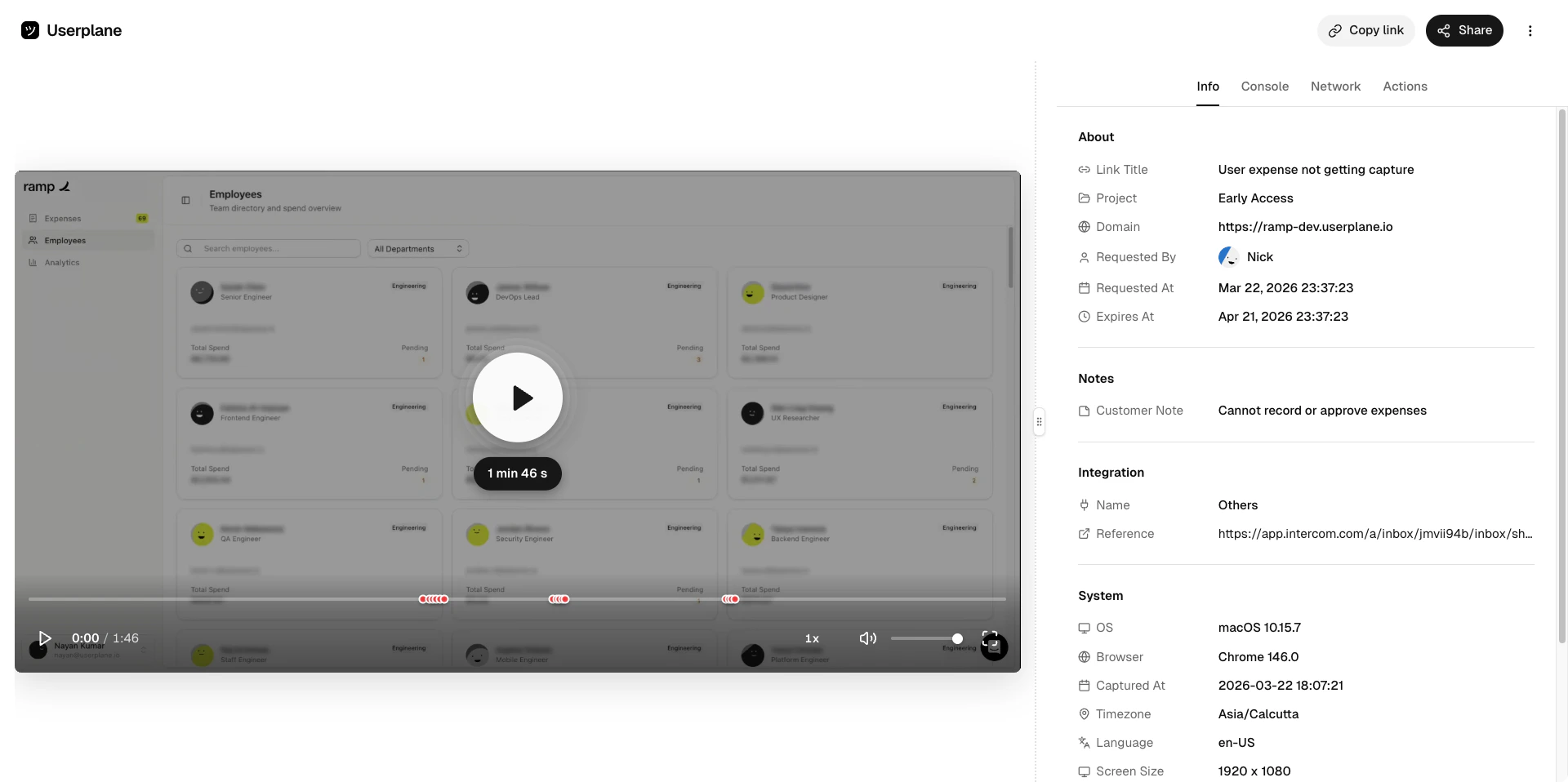
Recording playback
Requirements
- The Slack integration must be connected.
- The agent must be a member of the Userplane workspace (matched by email).
Related articles
- Slack Integration — overview and connection guide.
- Slack Slash Command — create recording links from any channel.
- Slack Message Shortcuts — create links from a message context menu.
- Slack Notifications — recording arrival notifications in Slack.