

What the integration does
- Adds a /userplane slash command so agents can create recording links from any channel or DM.
- Adds a message shortcut so agents can right-click any Slack message to create a recording link in context.
- Provides an App Home dashboard with recent recordings, recent links, browsing, and inline link creation.
- Sends a DM notification to the agent when a recording arrives.
- Posts the recording link as a channel message when created, so the whole thread has context.
Connecting Slack
There are two ways to connect Userplane to Slack:Only workspace owners and admins can connect the integration.
- From Slack App Directory
- From Workspace Settings
Install Userplane from the Slack App Directory to create a new Userplane workspace as part of setup.
1
Find Userplane in the Slack App Directory
Search for Userplane in the Slack App Directory and click Add to Slack.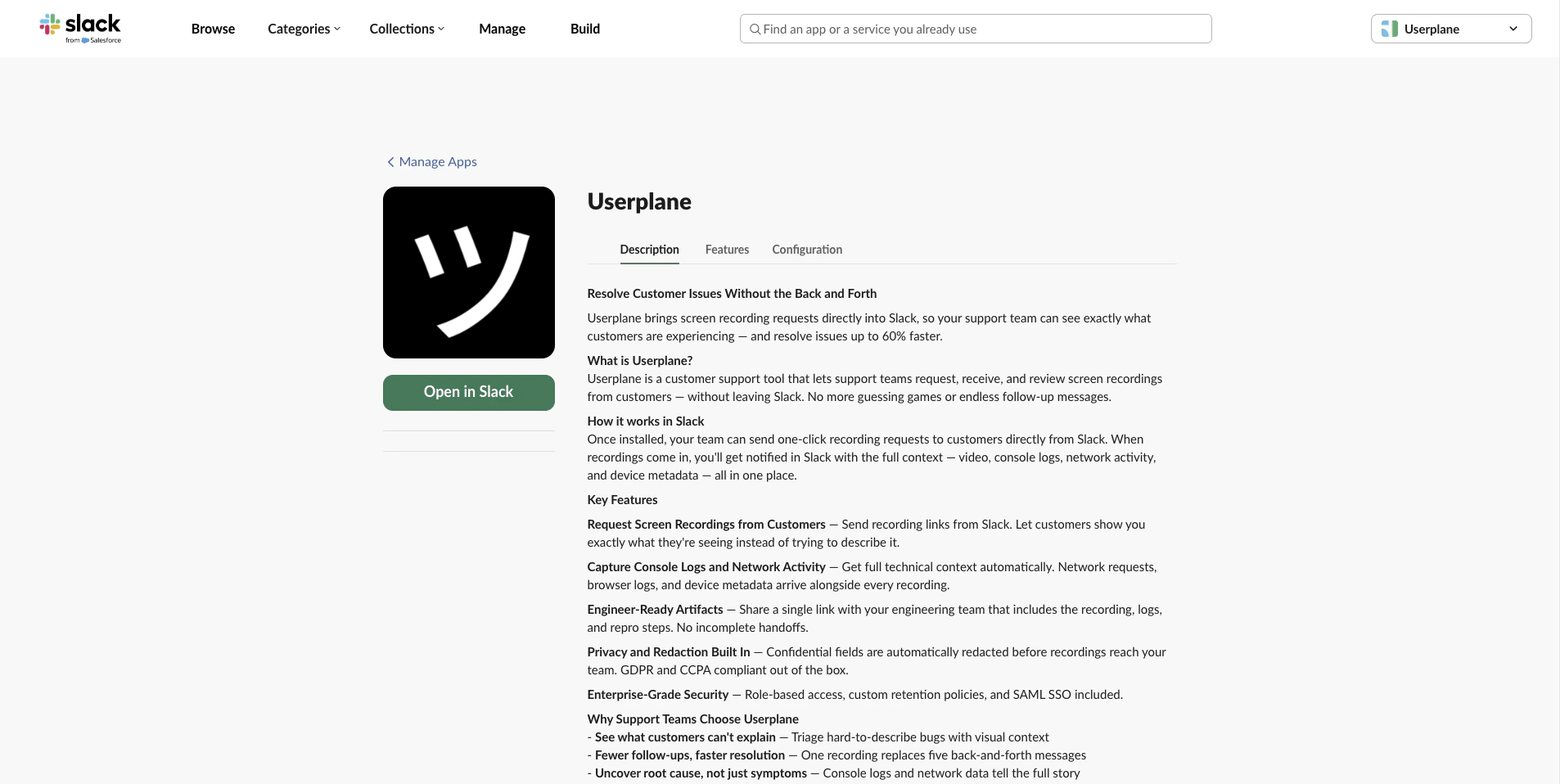
Userplane in the Slack App Directory
2
Authorize
Review the permissions Userplane requests and click Allow.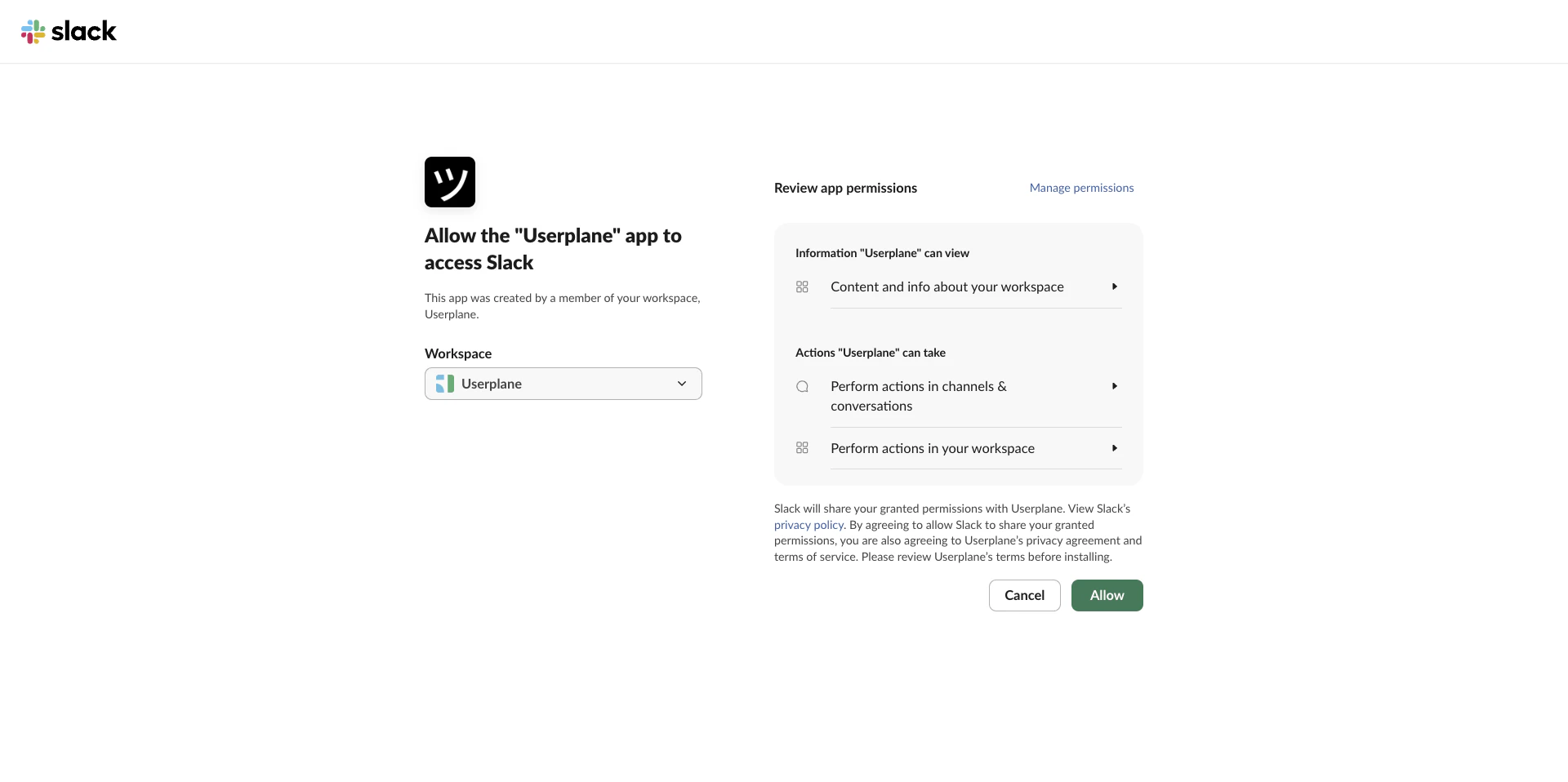
Slack authorization screen
3
Create a workspace
After authorizing, you’ll be prompted to create a new Userplane workspace.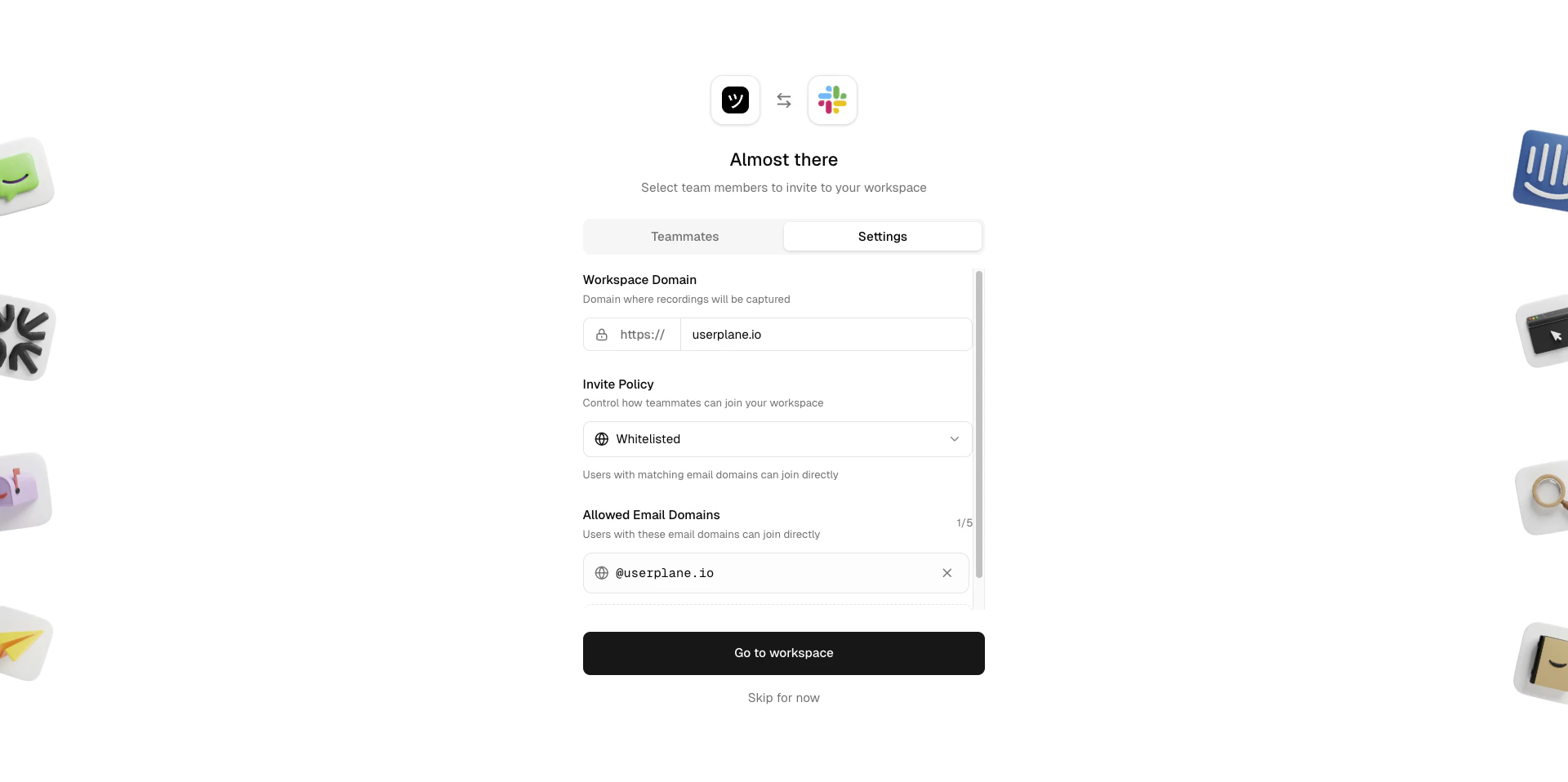
Create your workspace
4
Invite teammates
Invite your support team to the workspace so they can use the Slack integration.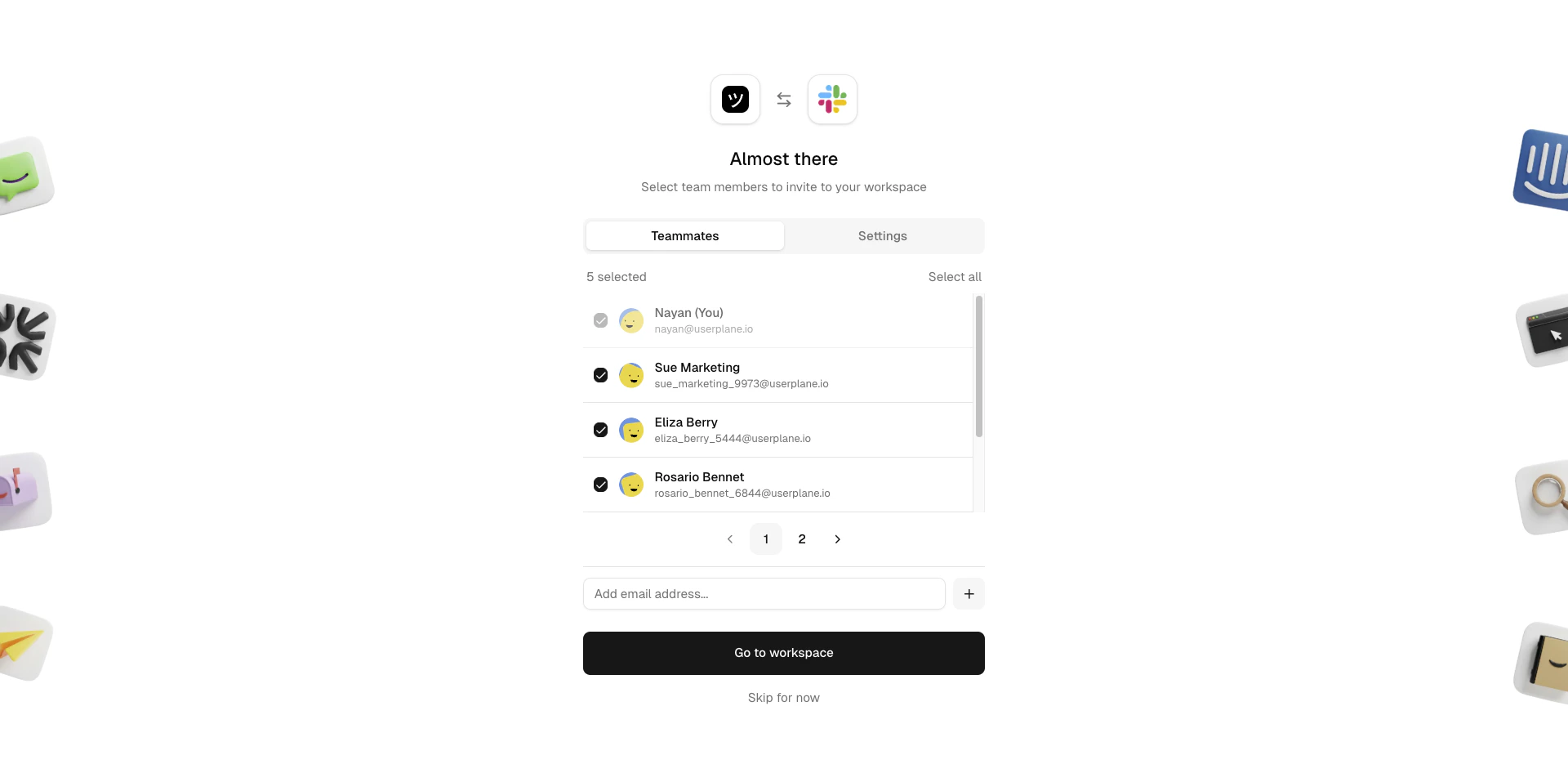
Invite teammates
5
Done
The Userplane app is now installed in your Slack workspace. Try 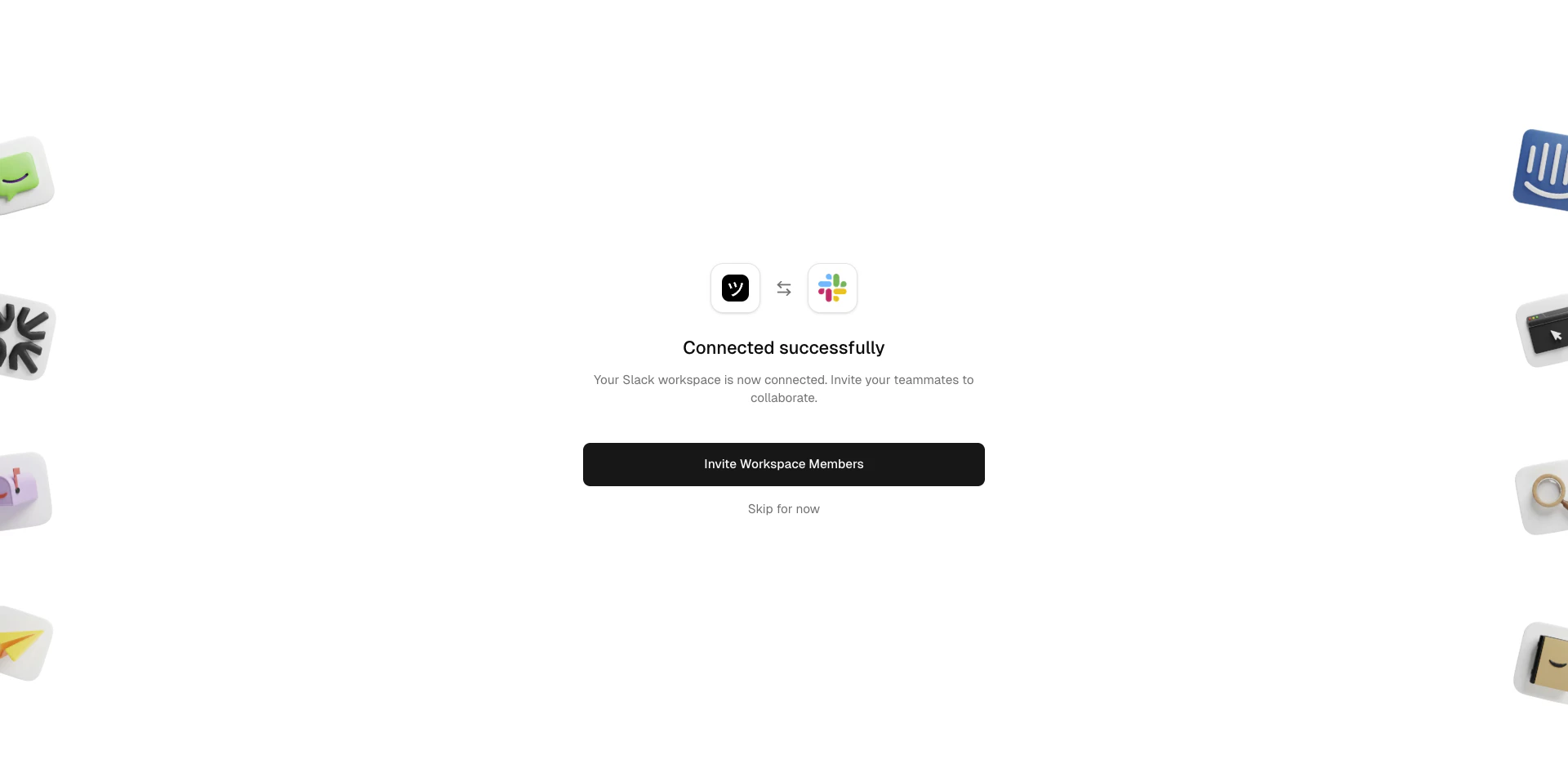
/userplane in any channel to get started.Connected successfully
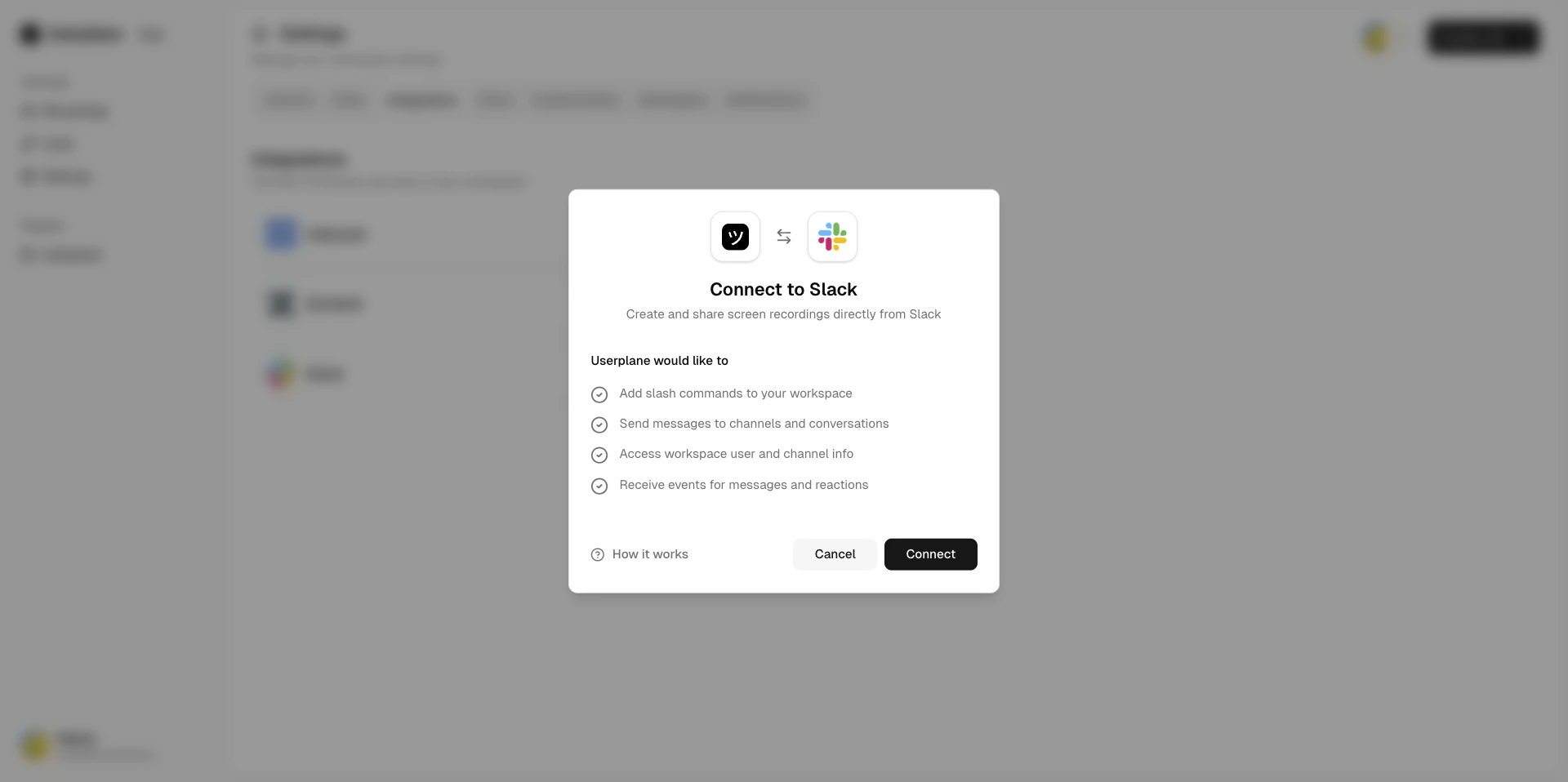
Permissions granted
When you authorize the Slack connection, Userplane requests the following bot permissions:- Send messages to channels and DMs.
- Post messages to public channels without being a member.
- Look up users by email to match Slack identities to Userplane workspace members.
- Read basic workspace and team information.
- Register the
/userplaneslash command.
Disconnecting Slack
1
Open Integrations settings
Go to Workspace Settings > Integrations.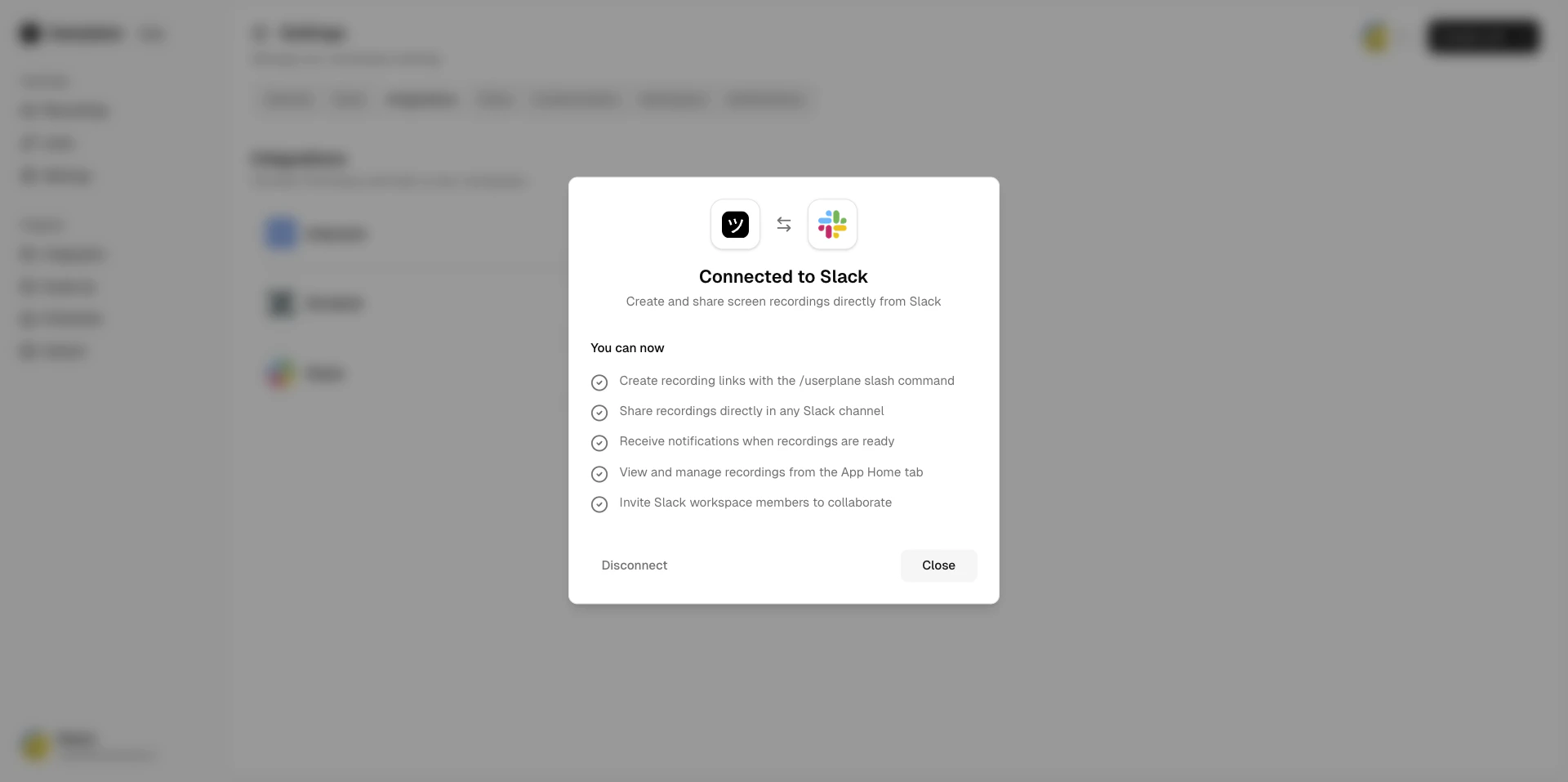
Integrations settings
2
Click Disconnect
Click Disconnect next to Slack and confirm.
Disconnecting removes the Userplane app from Slack. Existing recordings and links are preserved.
All workspace members’ Slack notification preferences are cleared and must be re-enabled after
reconnecting.
Related articles
- Slack App Home — the dashboard inside Slack for browsing and creating links.
- Slack Slash Command — create recording links from any channel with
/userplane. - Slack Message Shortcuts — right-click any message to create a link in context.
- Slack Notifications — get notified when recordings arrive.