Create recording links from anywhere in Zendesk using the top bar app
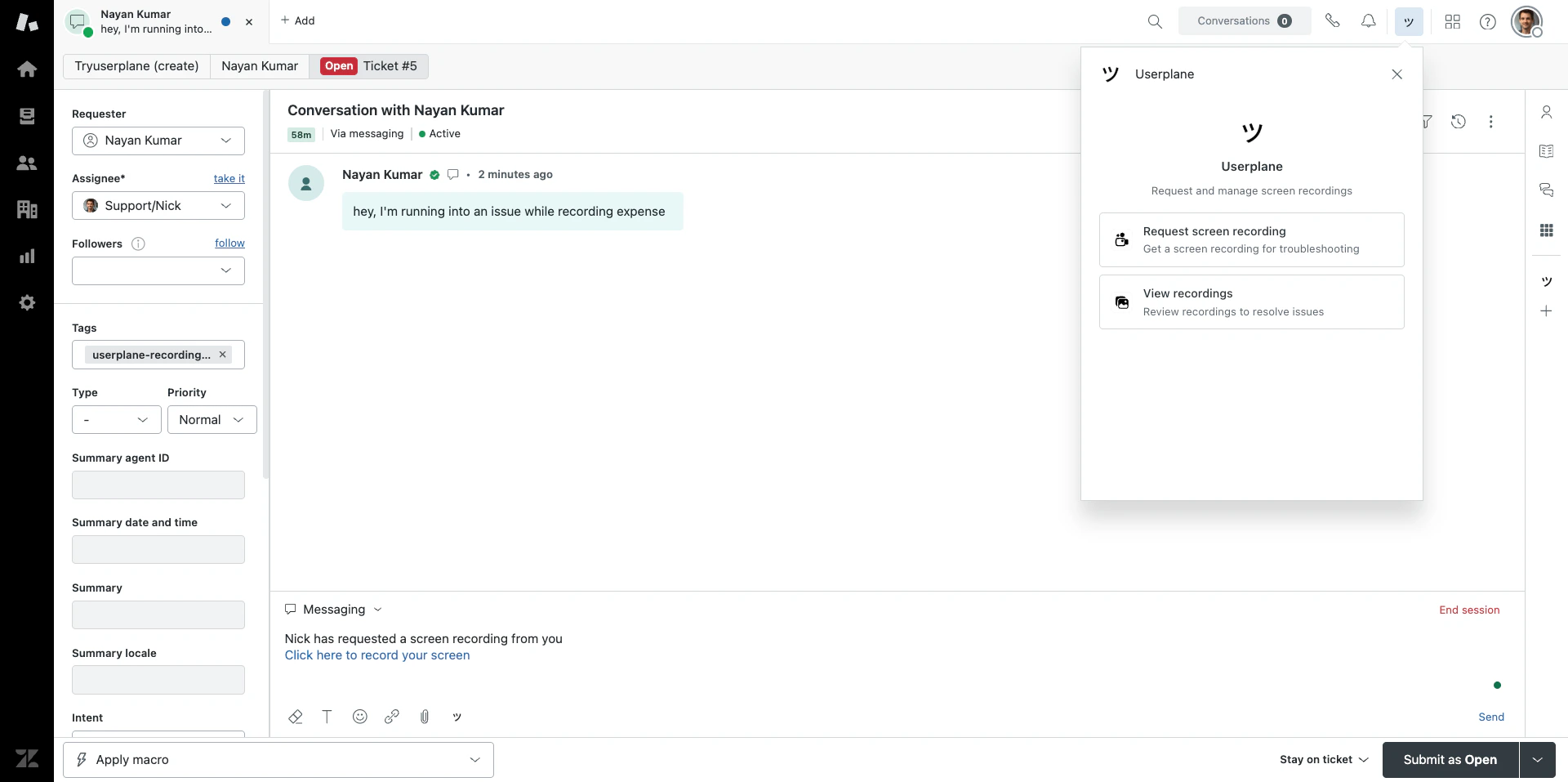
The top bar app gives you quick access to Userplane from any page in Zendesk — not just tickets. Use it to create recording links before navigating to a specific ticket, or to generate links you want to share outside of Zendesk.
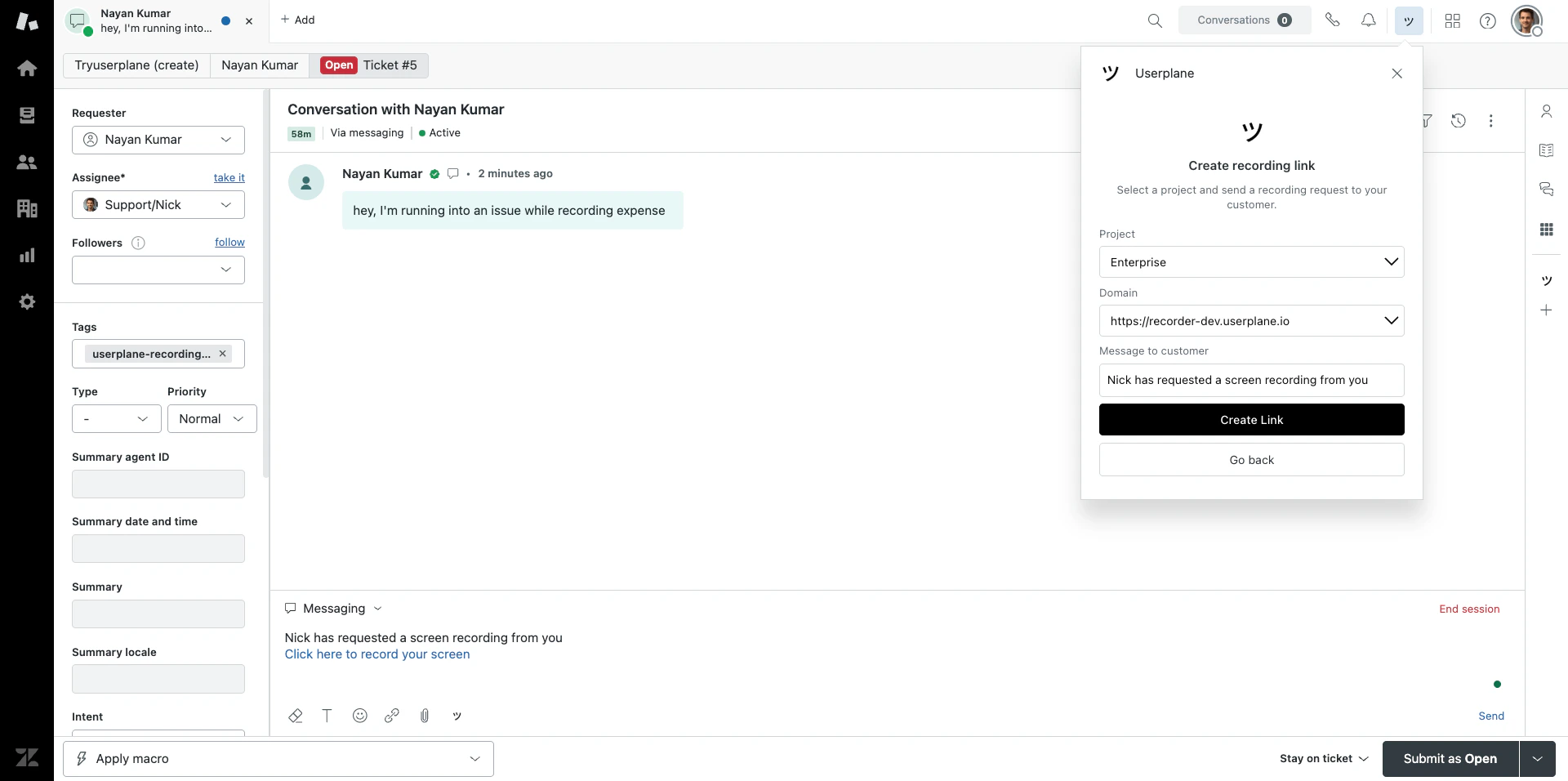
Click Request Recording, then select a project and domain from the dropdowns.
Create link from top bar
3
Create and copy
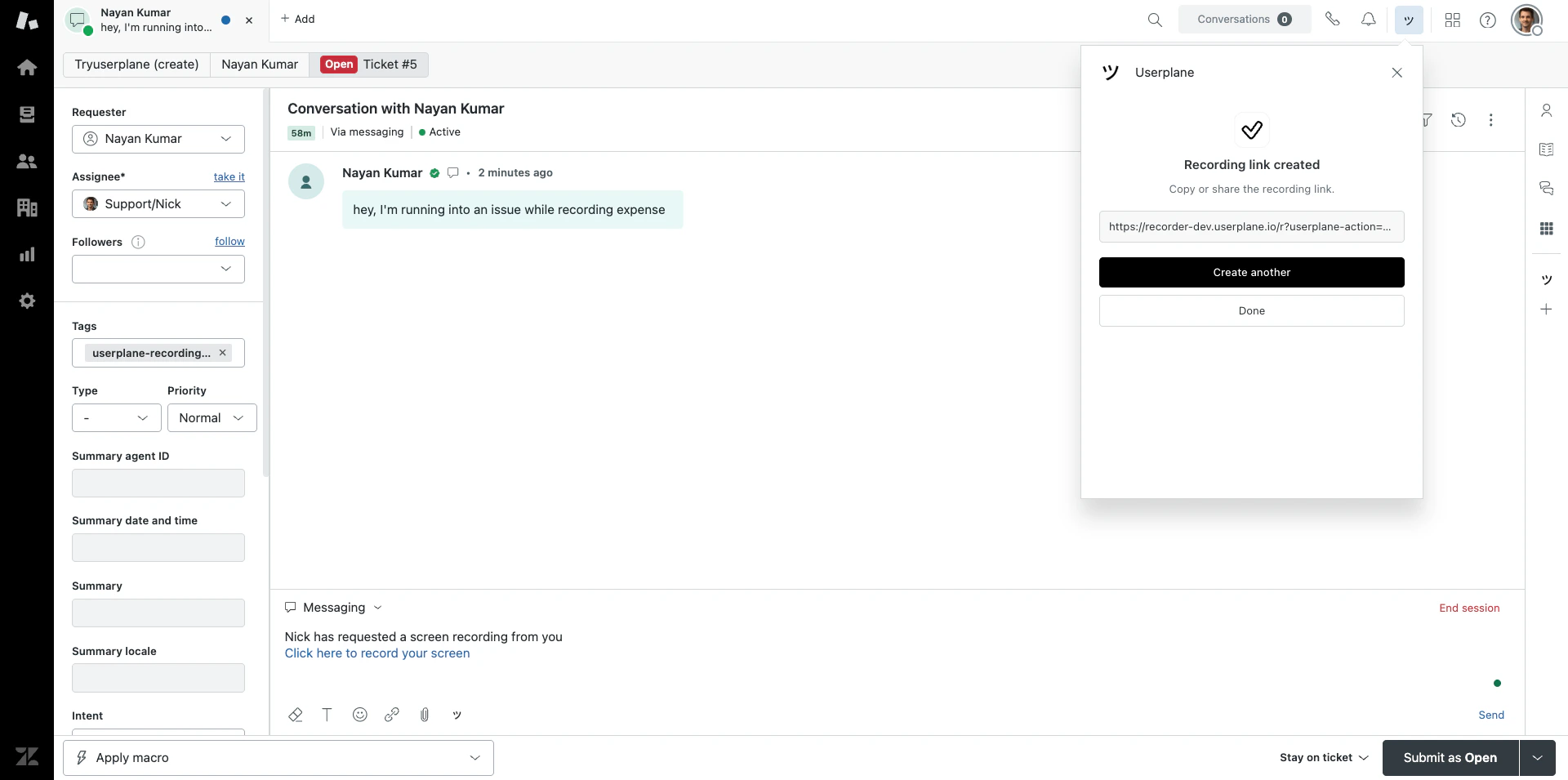
Click Create Link. Copy the link URL to share it via email, Slack, or any other channel.
Link created from top bar
Since the top bar is not associated with a specific ticket, no ticket context (ID, subject,
requester) is captured. For ticket-specific links, use the ticket
sidebar or ticket
editor instead.
Once a customer completes a recording, there are two ways to access it:
1
Find the recording
Via ticket notification
Via Userplane dashboard
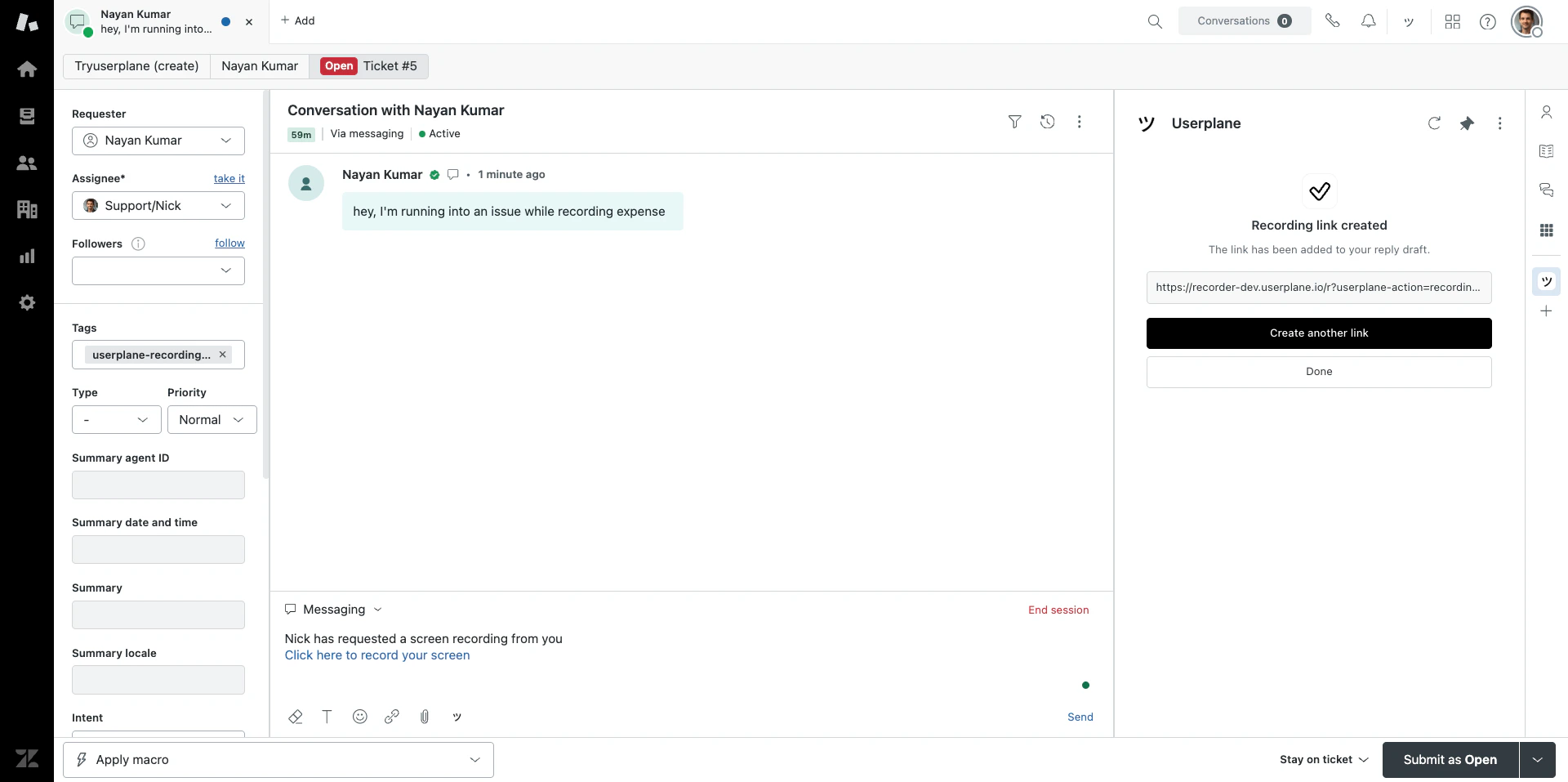
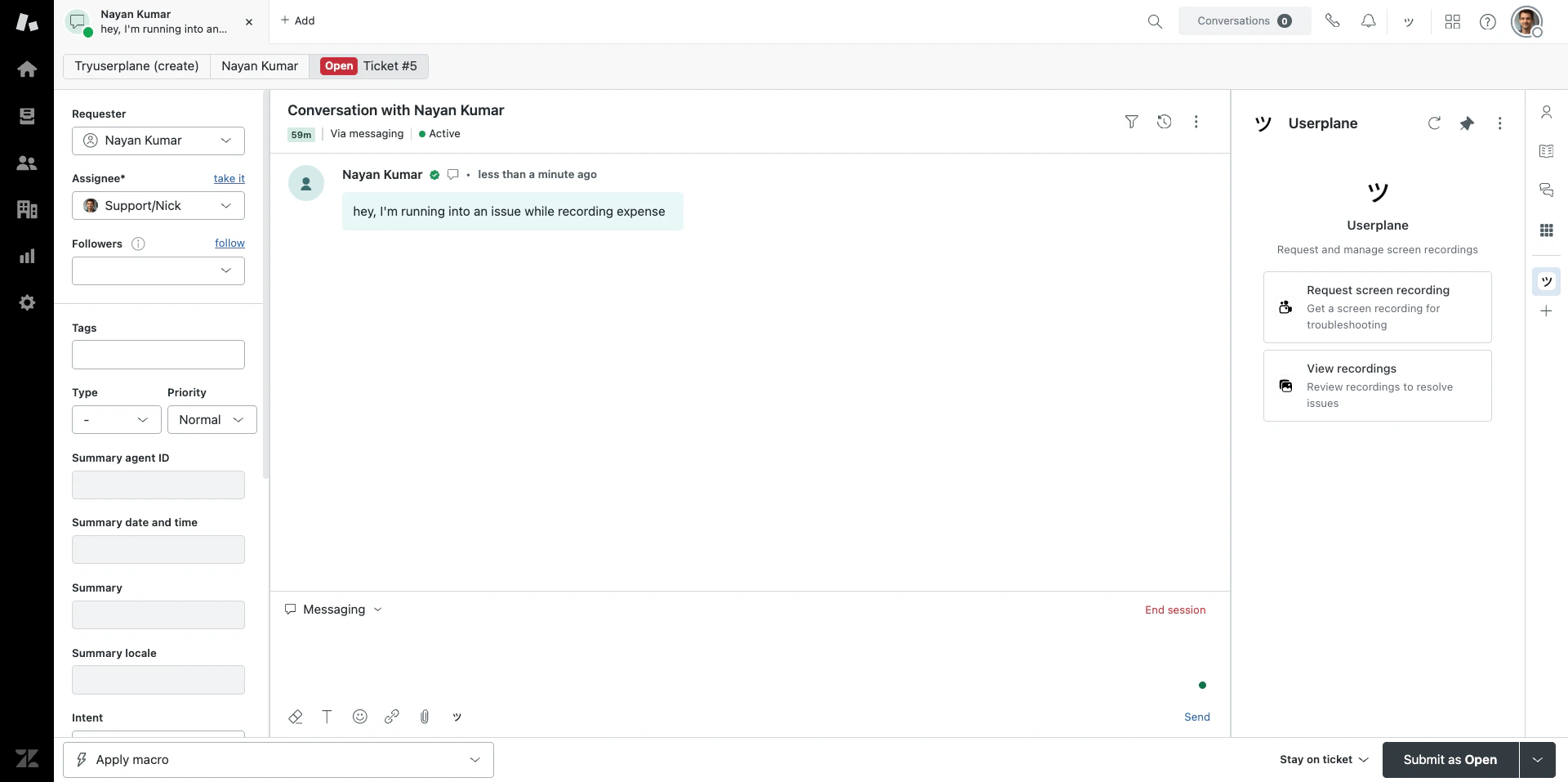
If the link was created from a ticket, Userplane posts an internal note — visible only to agents — with a direct link to the recording playback. Click the link to jump straight to the recording. See Zendesk Notifications for details.
Recording link created in ticket
Open the Userplane dashboard to browse all recordings for your workspace.
Sidebar opener
2
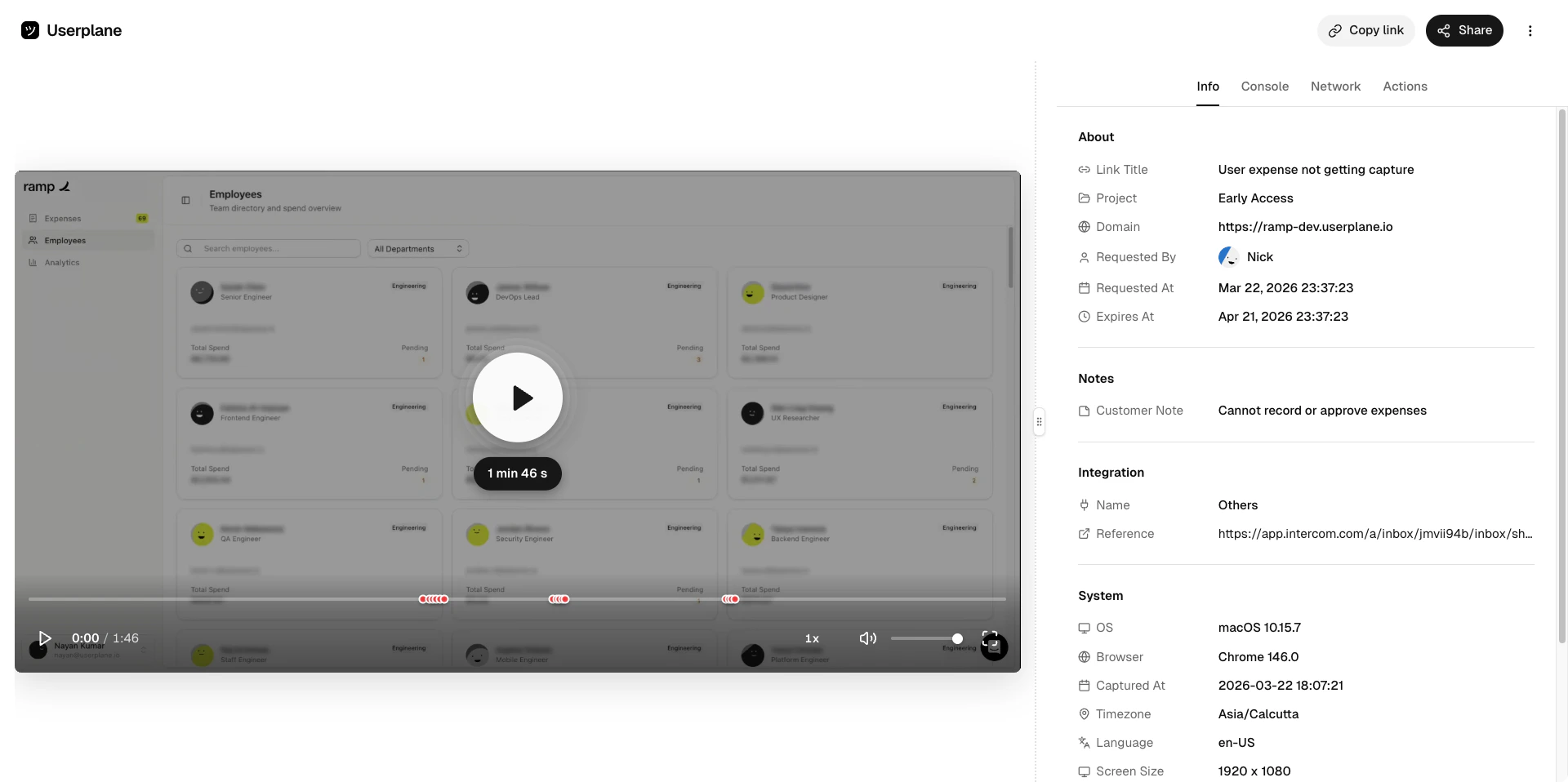
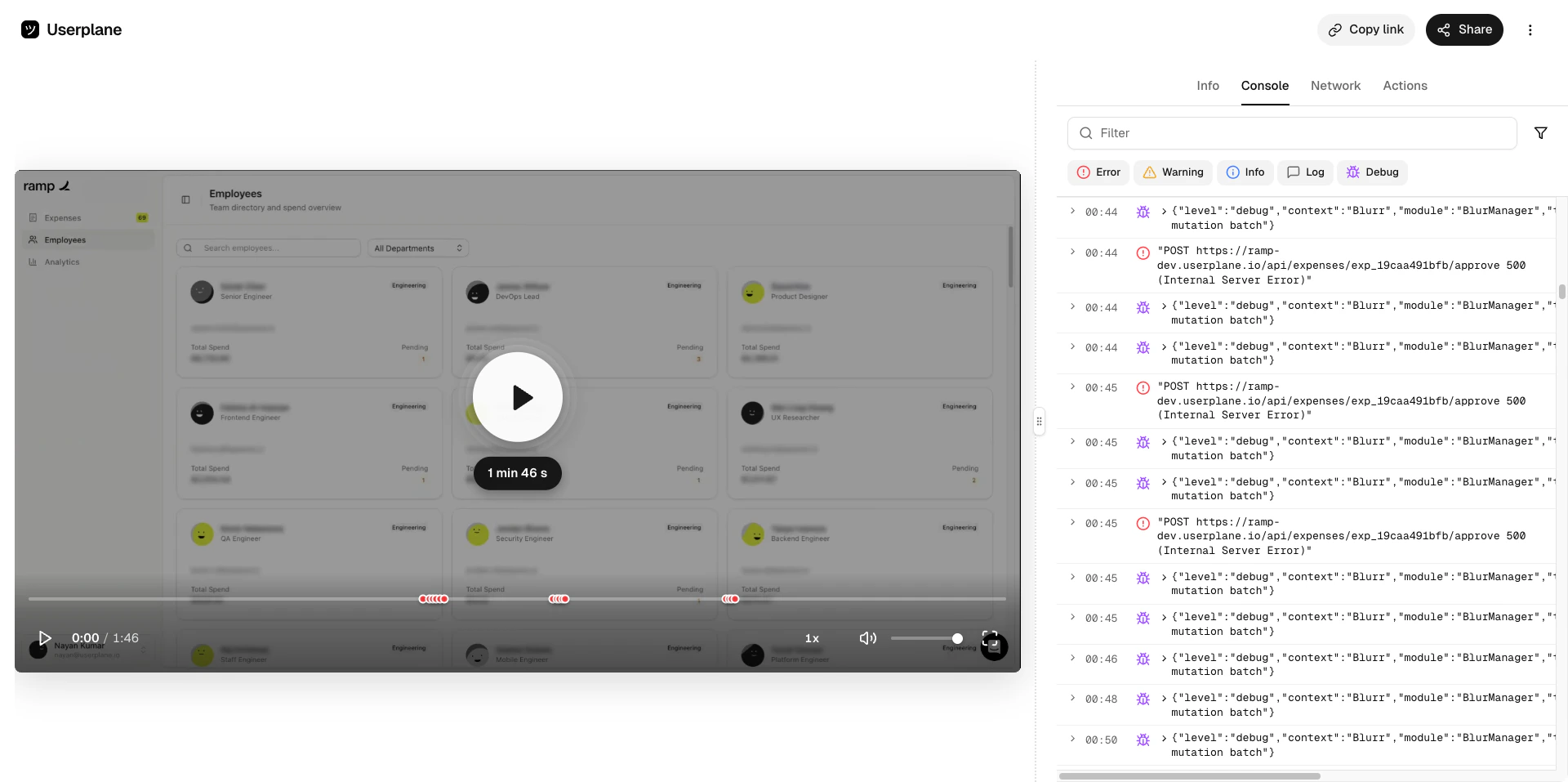
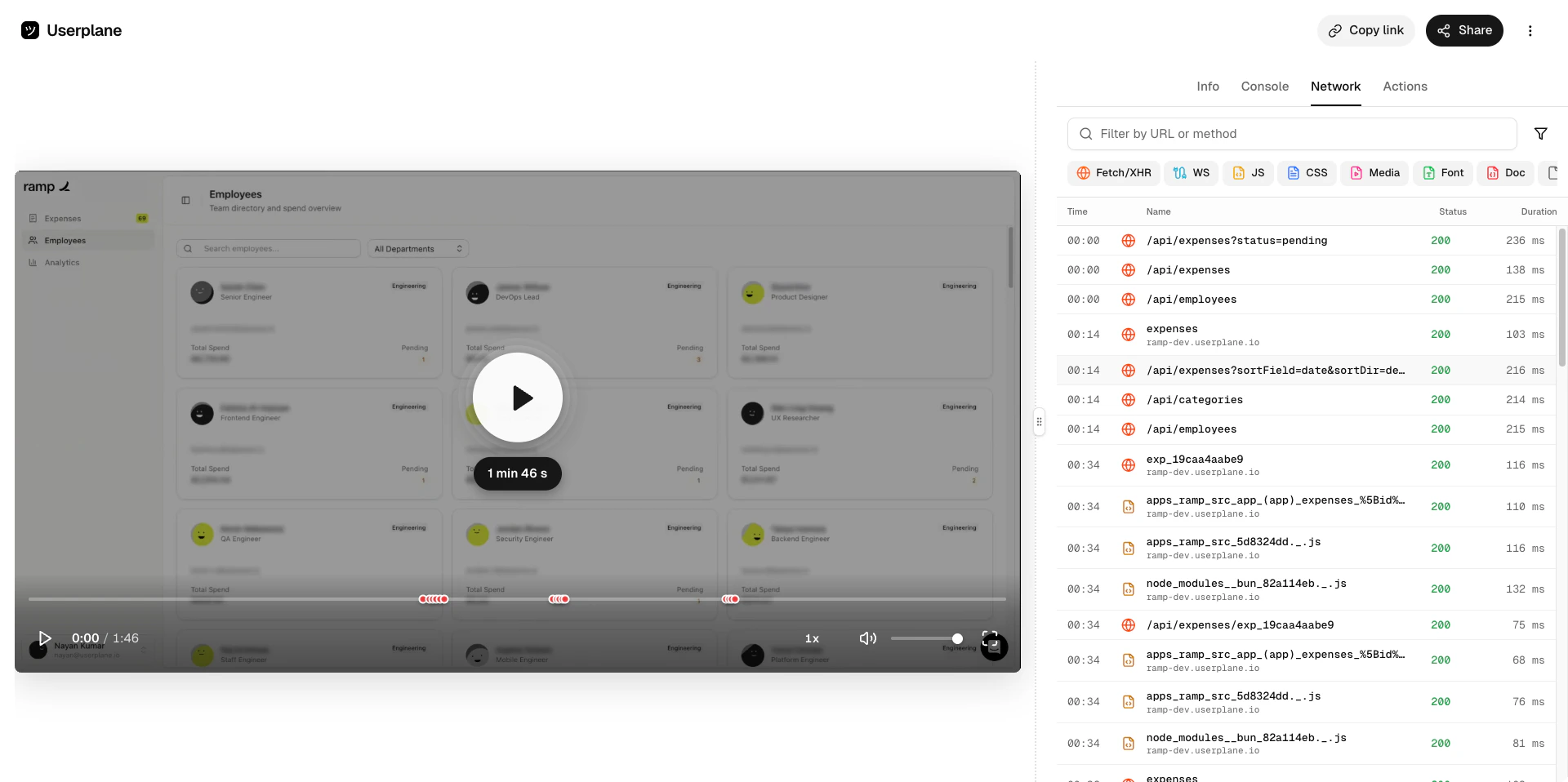
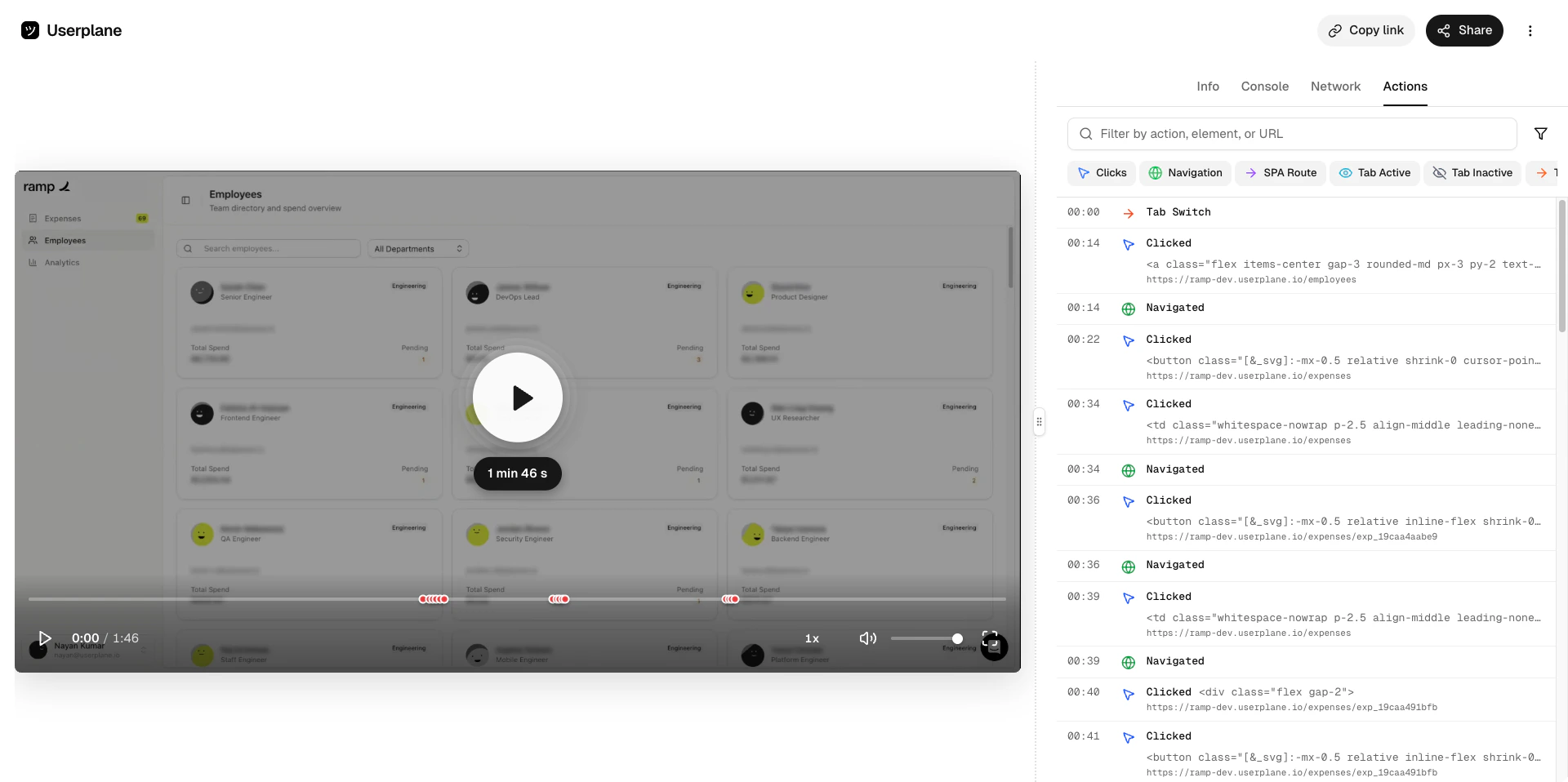
Review the recording
Watch the video and inspect the captured data — console logs, network requests, user actions, and metadata.