Create recording links and view recordings from the Zendesk ticket sidebar
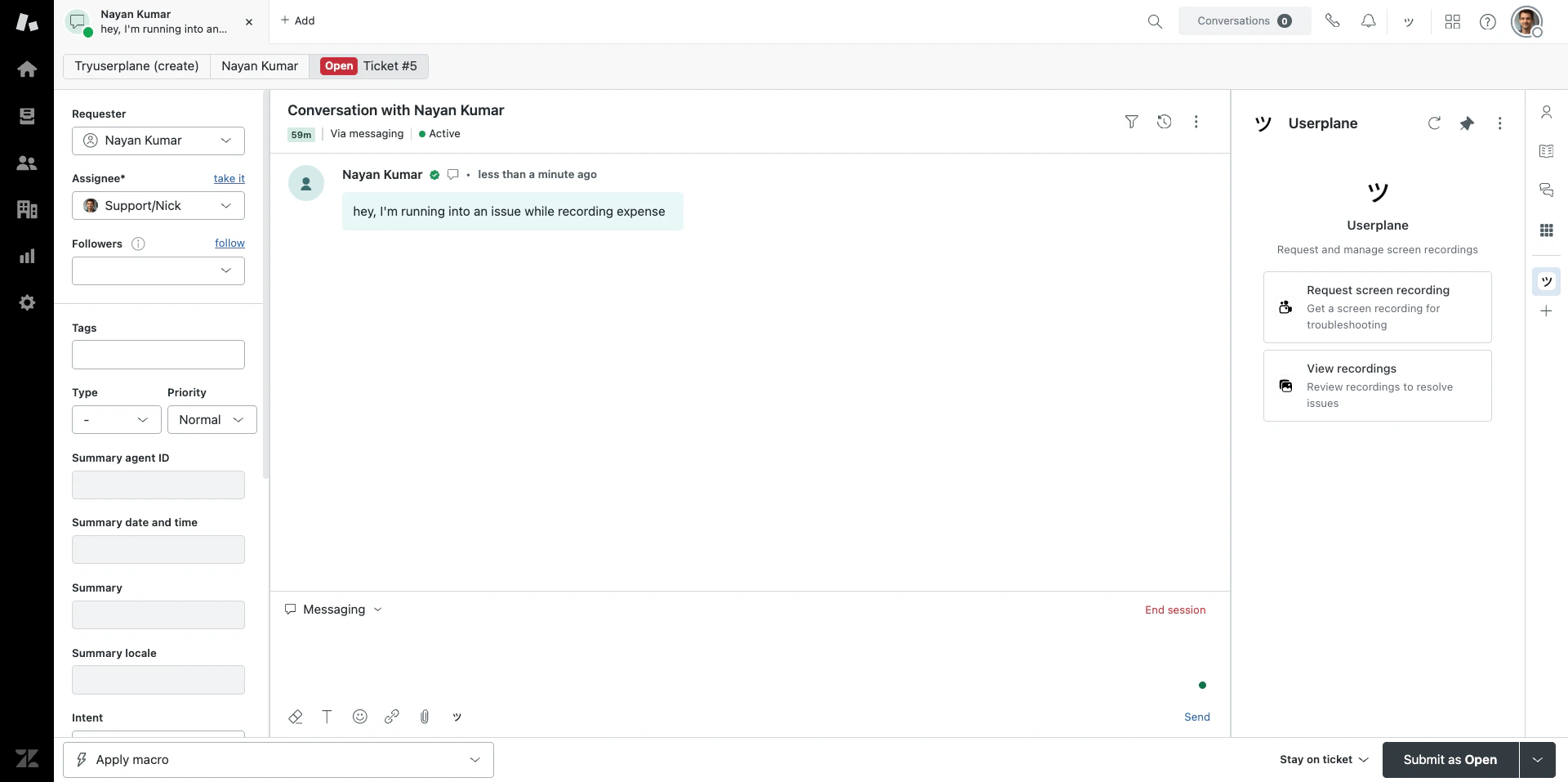
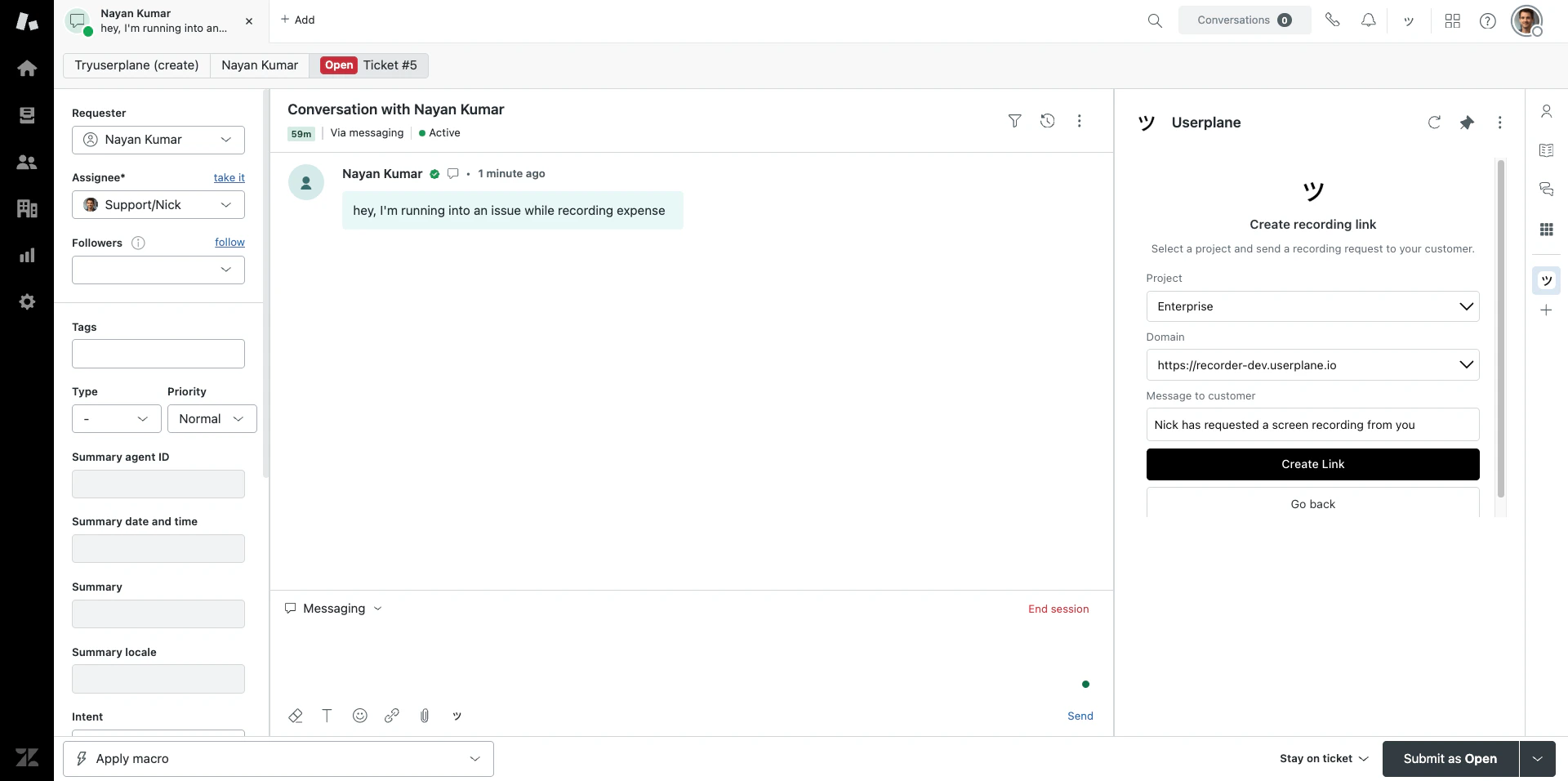
After connecting Zendesk, a Userplane sidebar app appears in every ticket. This is the primary surface for creating recording links, viewing recordings, and managing ticket context — all without leaving the ticket.
Once a customer completes a recording, there are two ways to access it:
1
Find the recording
Via ticket notification
Via Userplane dashboard
When the recording is received, Userplane posts an internal note on the ticket — visible only to agents — with a direct link to the recording playback. Click the link to jump straight to the recording. See Zendesk Notifications for details.
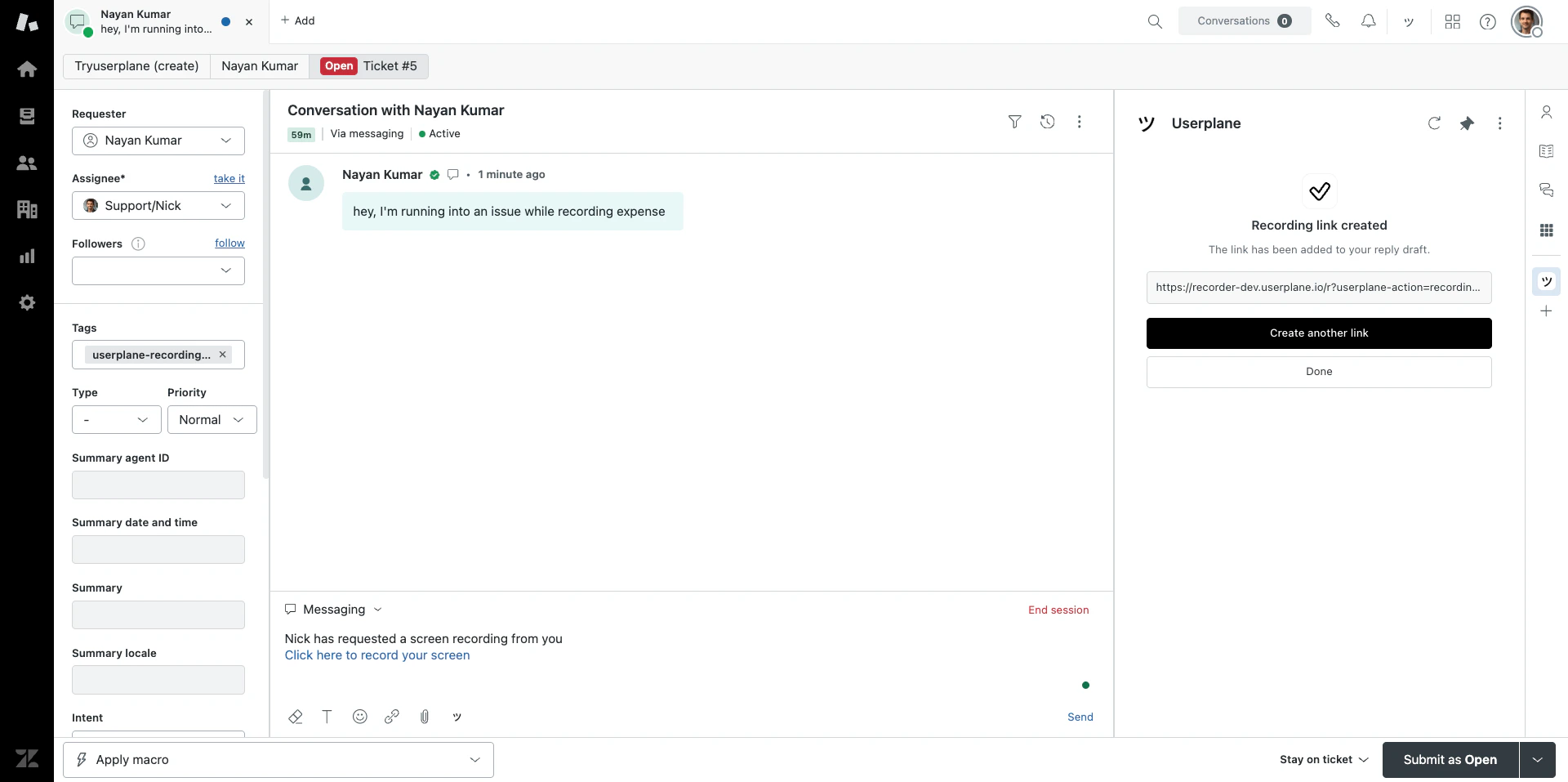
Recording link created in ticket
Click View Recordings in the sidebar opener to browse all recordings for your workspace in the Userplane dashboard.
Sidebar opener
2
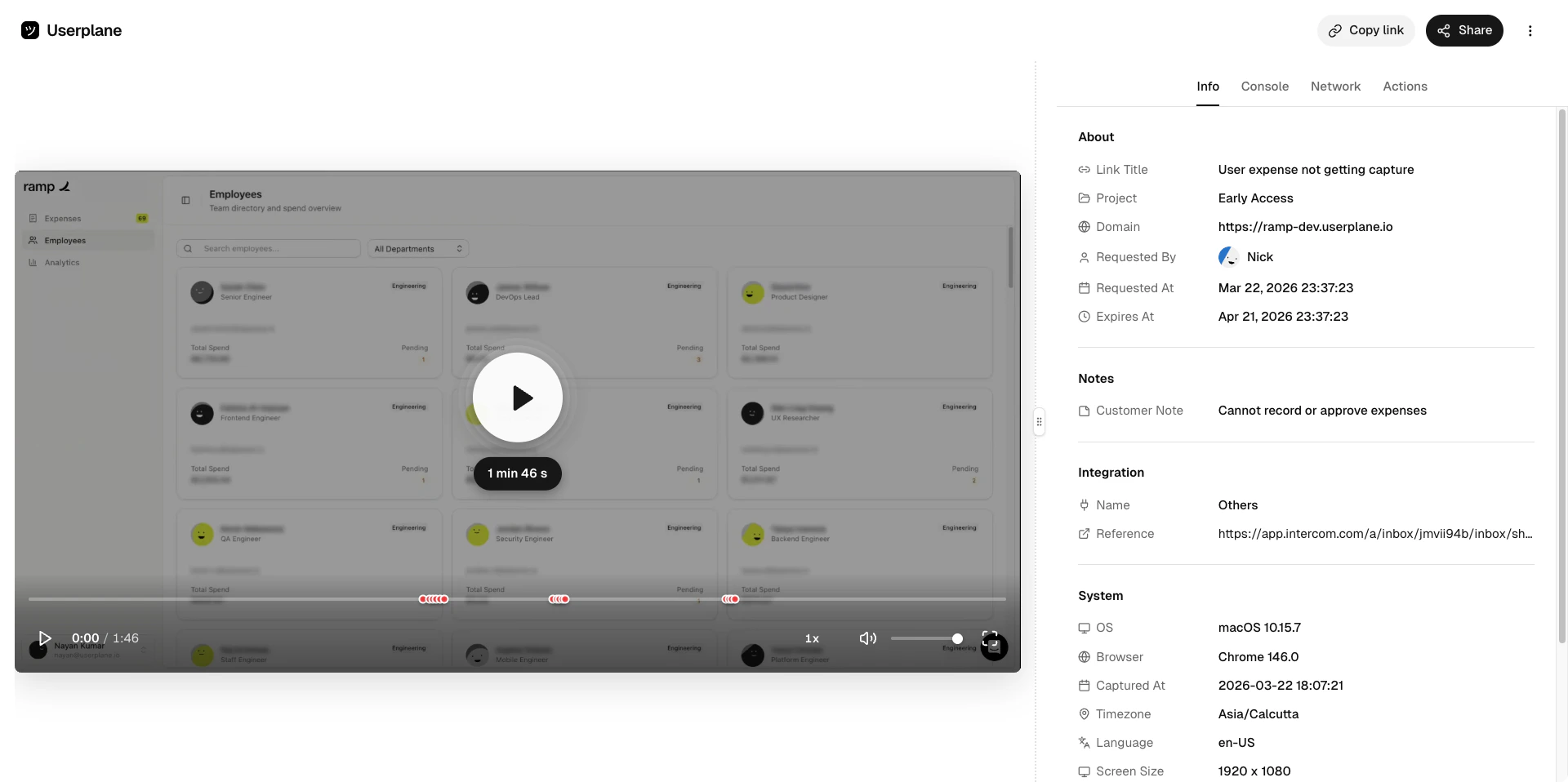
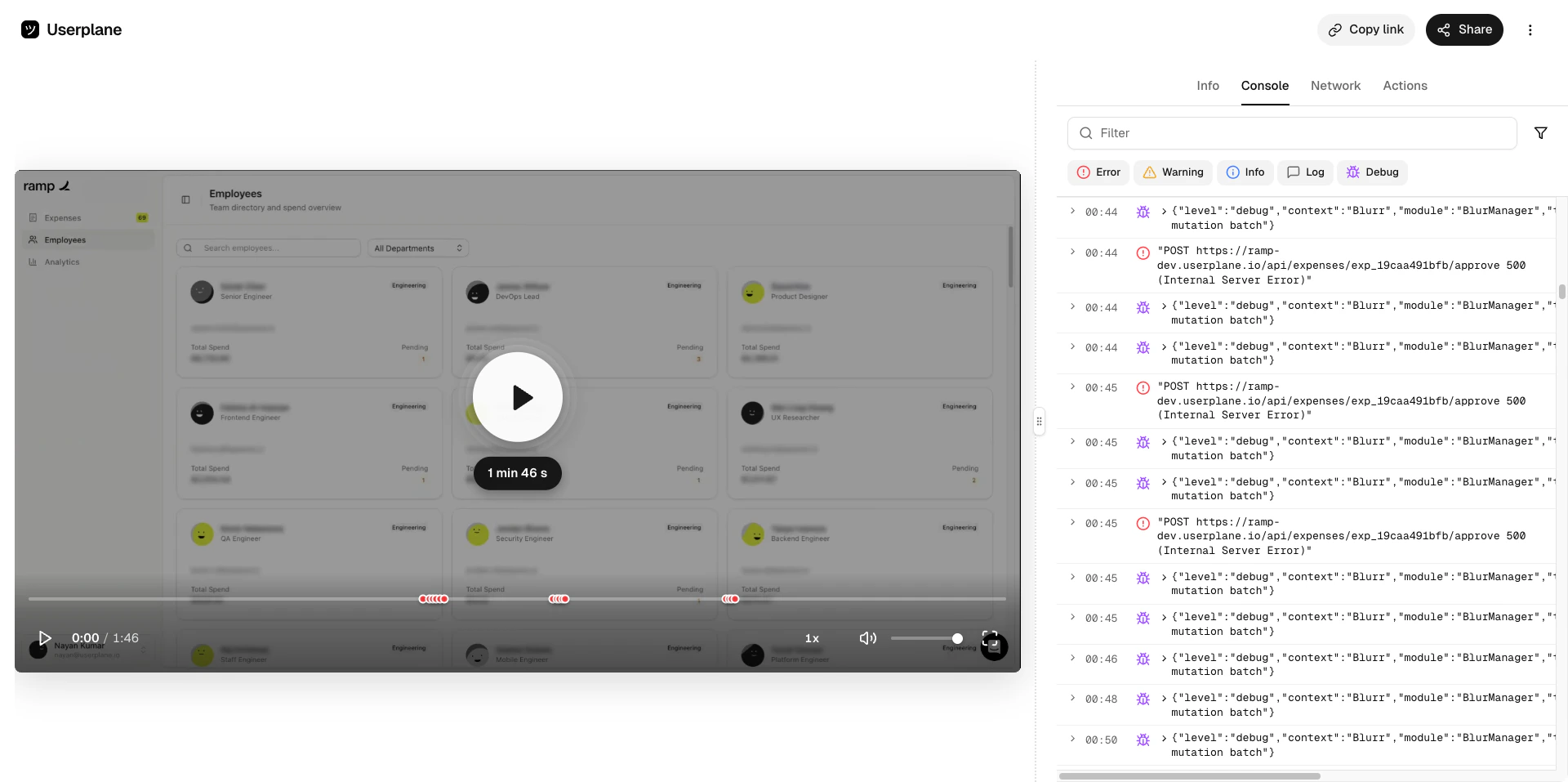
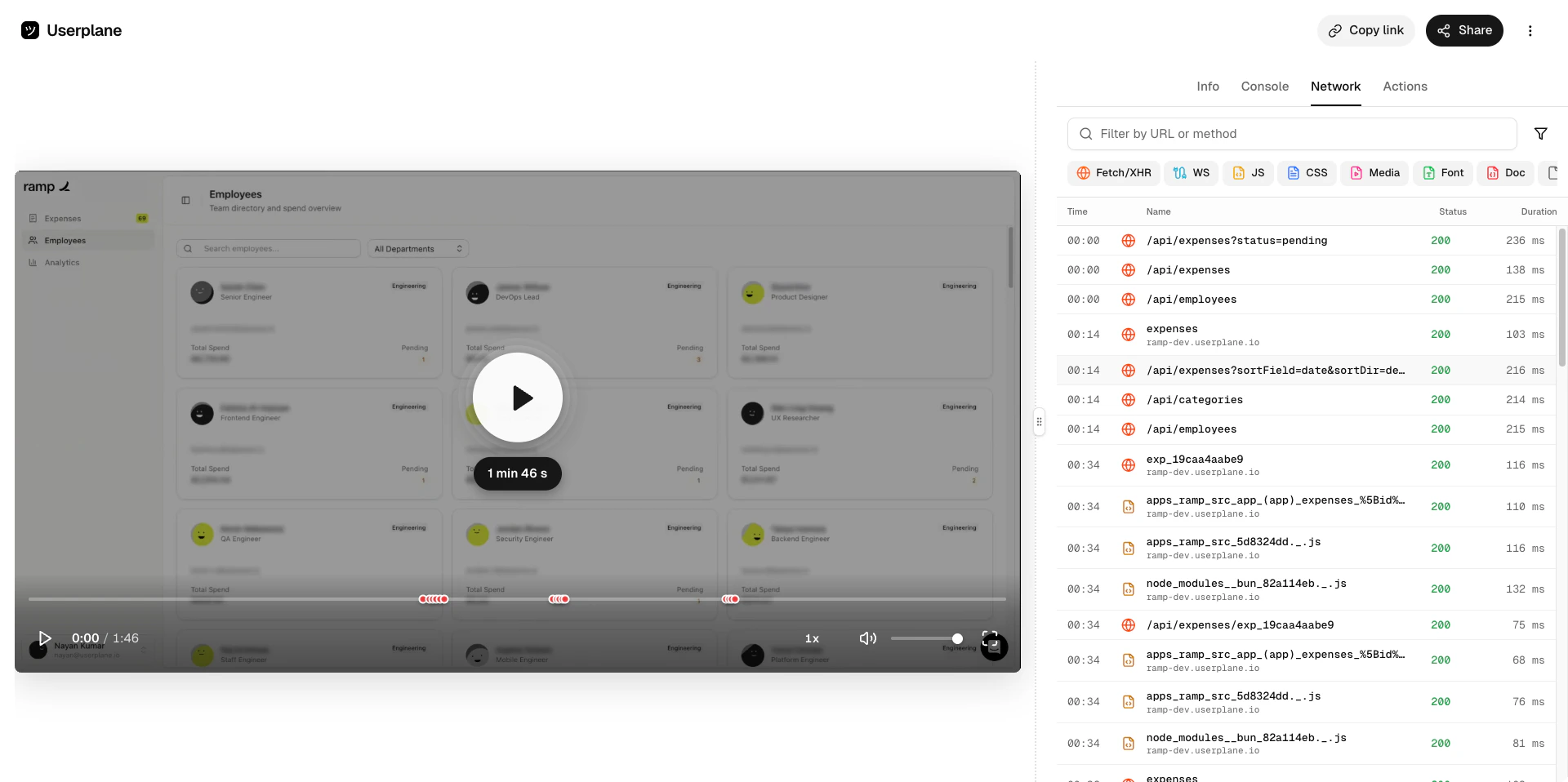
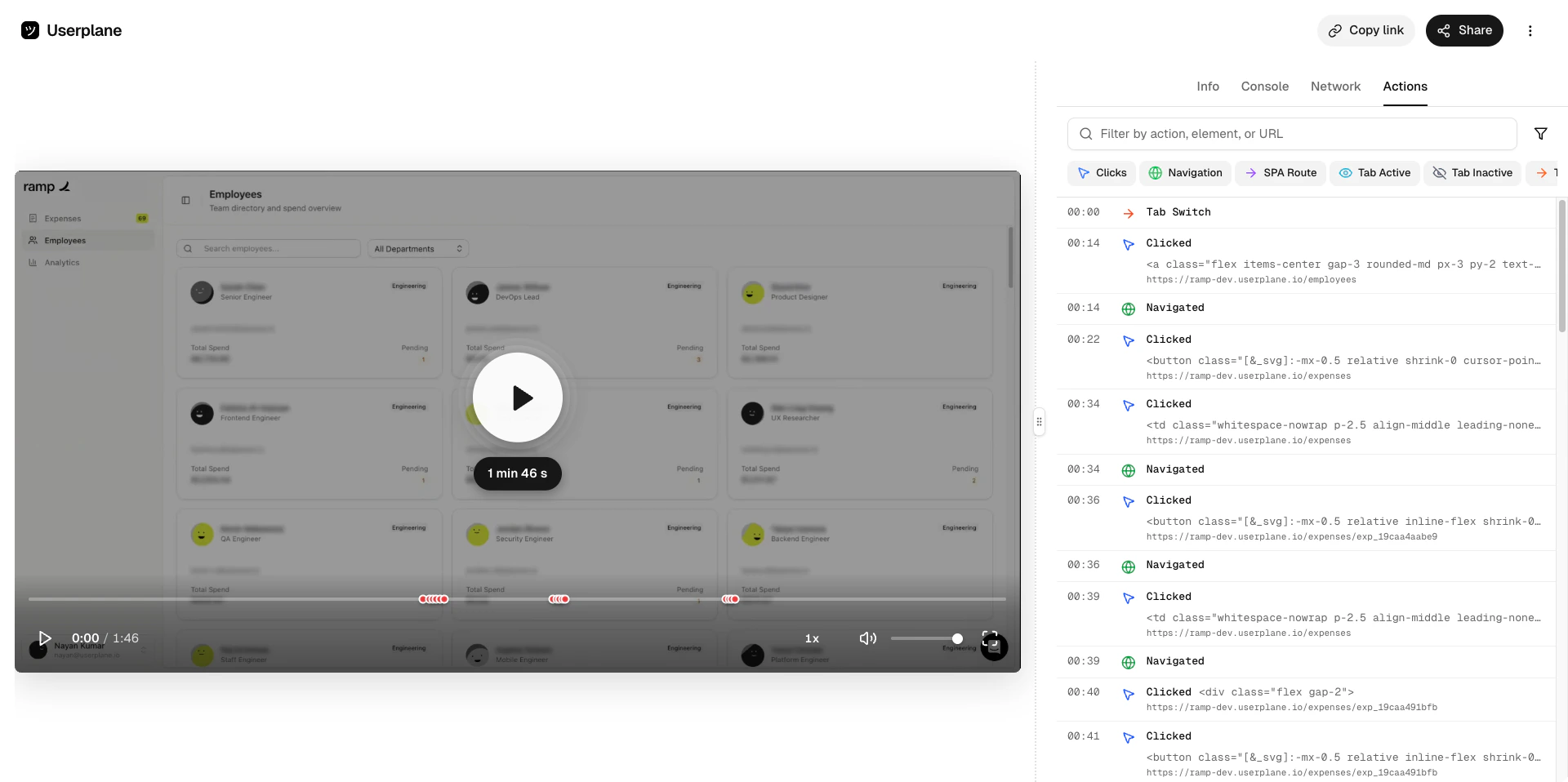
Review the recording
Watch the video and inspect the captured data — console logs, network requests, user actions, and metadata.
When a recording link is created from a ticket, Userplane adds the tag userplane-recording-requested to the ticket. You can use this tag in Zendesk views, triggers, and automations to track which tickets have pending recording requests.
If you prefer a faster workflow, use the ticket editor button to create and insert a recording
link directly into your reply draft — without opening the sidebar. See Zendesk Ticket
Editor for details.