

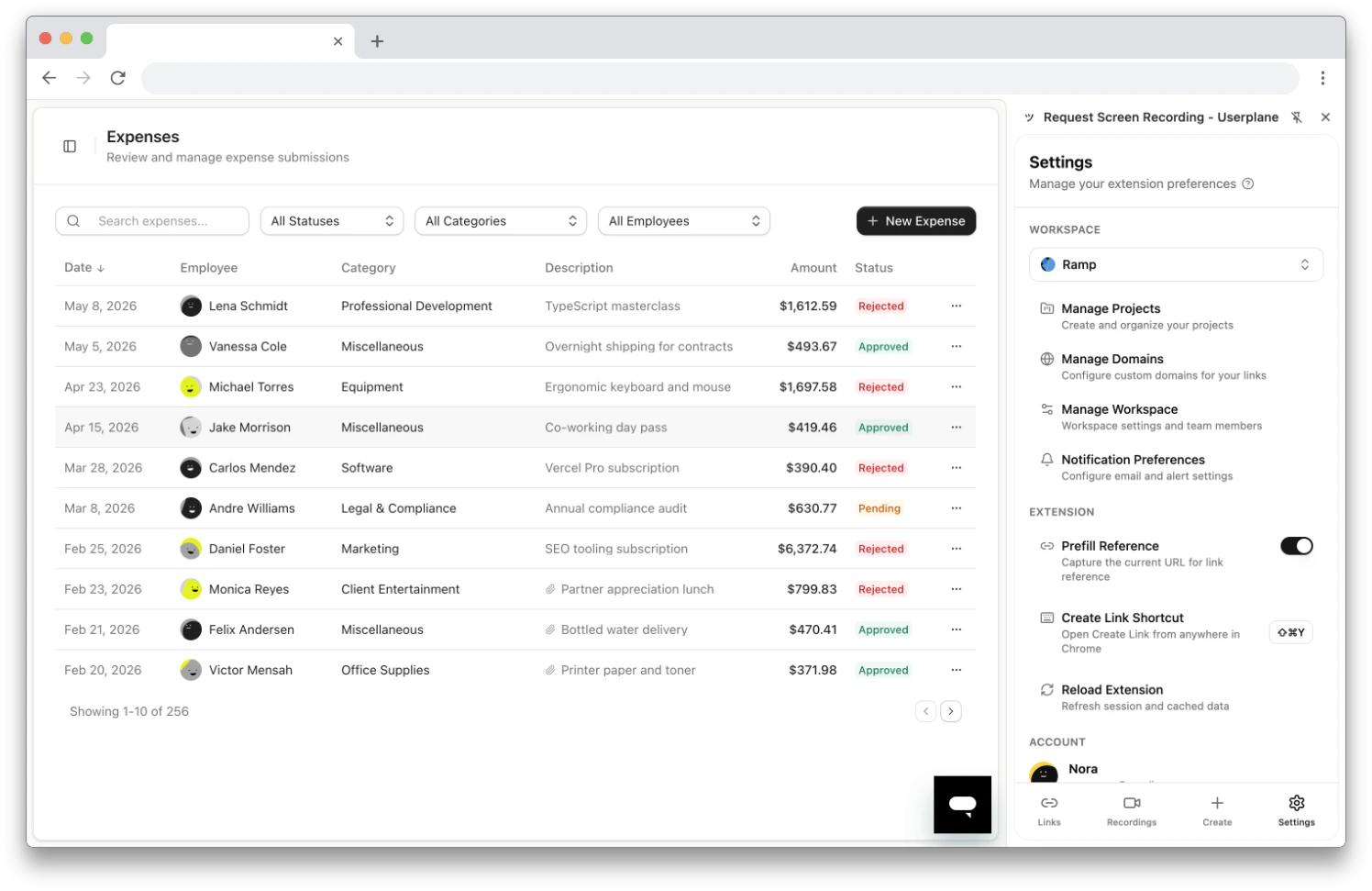
Extension settings overview
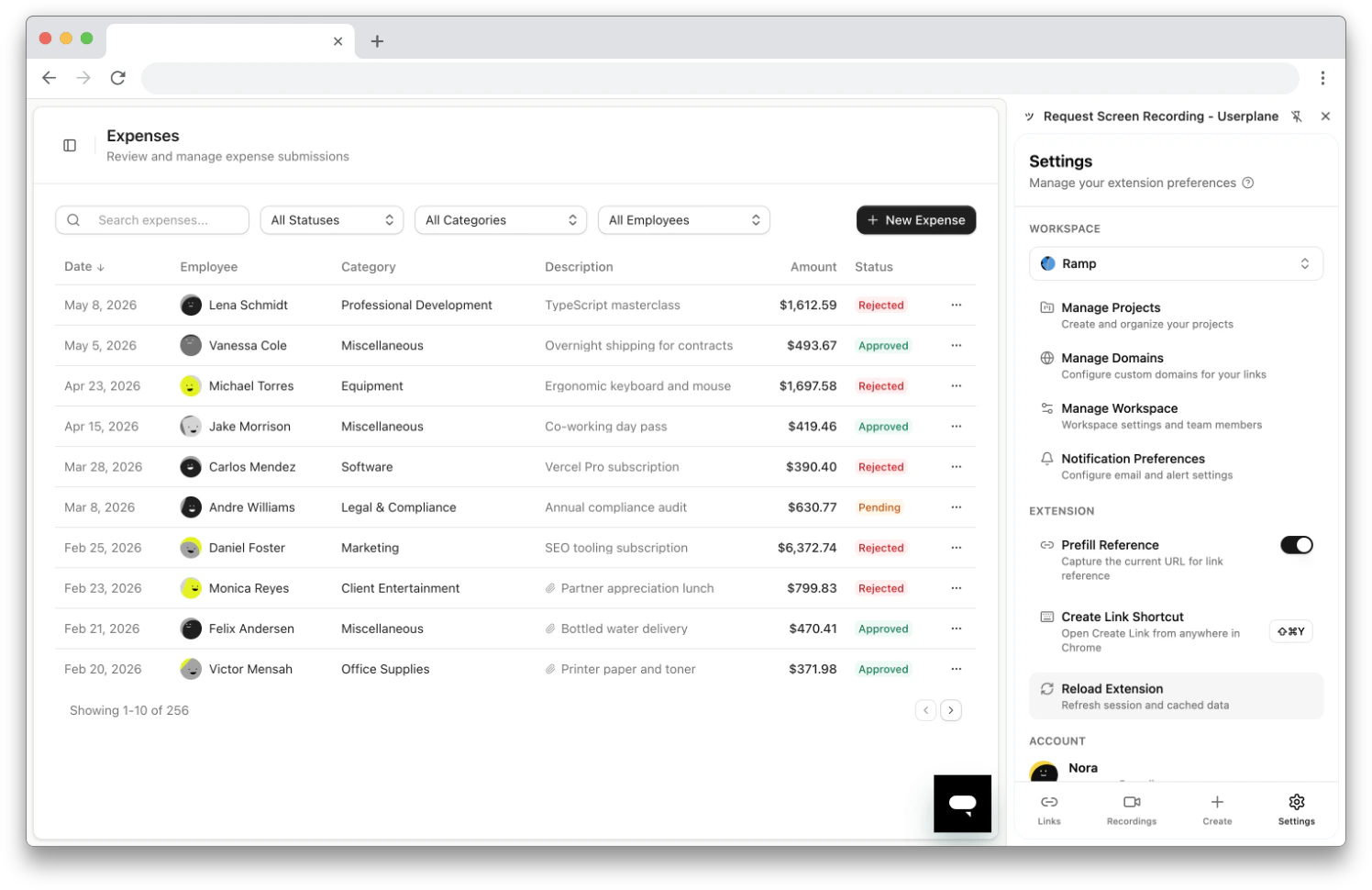
Workspace
Workspace switcher
If you belong to multiple workspaces, use the workspace dropdown to switch between them. The active workspace is shown with a checkmark. All links, recordings, and filters update to reflect the selected workspace.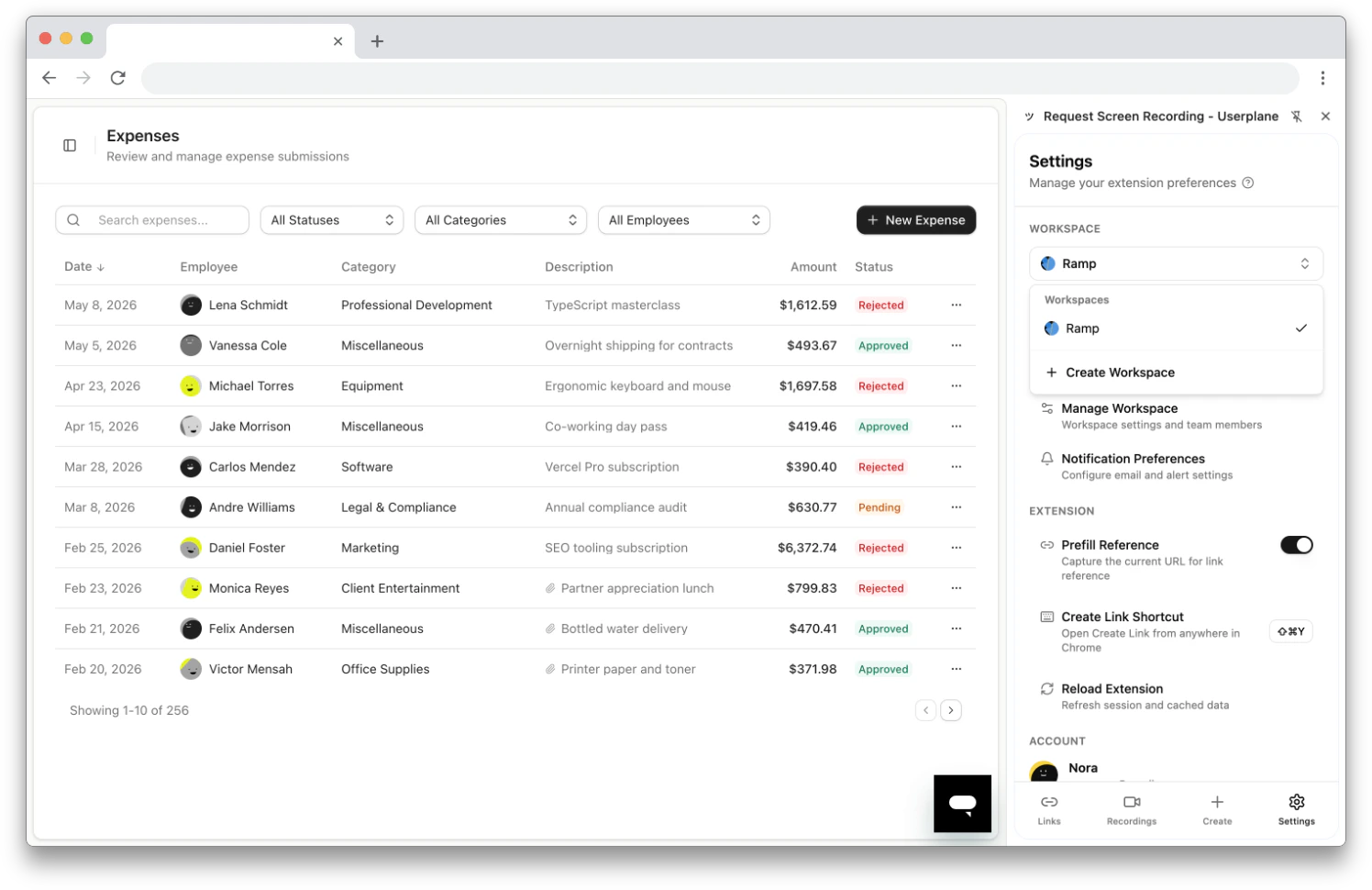
Workspace switcher
Quick links
The Settings tab provides shortcuts to your workspace settings in the Userplane dashboard:
Clicking any of these opens the corresponding dashboard page in a new tab.
Extension
Prefill Reference
Default: On When enabled, the Create Link form auto-populates the Link Reference field with the URL of the current active tab — for example, the help desk ticket or customer page you’re viewing. Toggle off to enter references manually.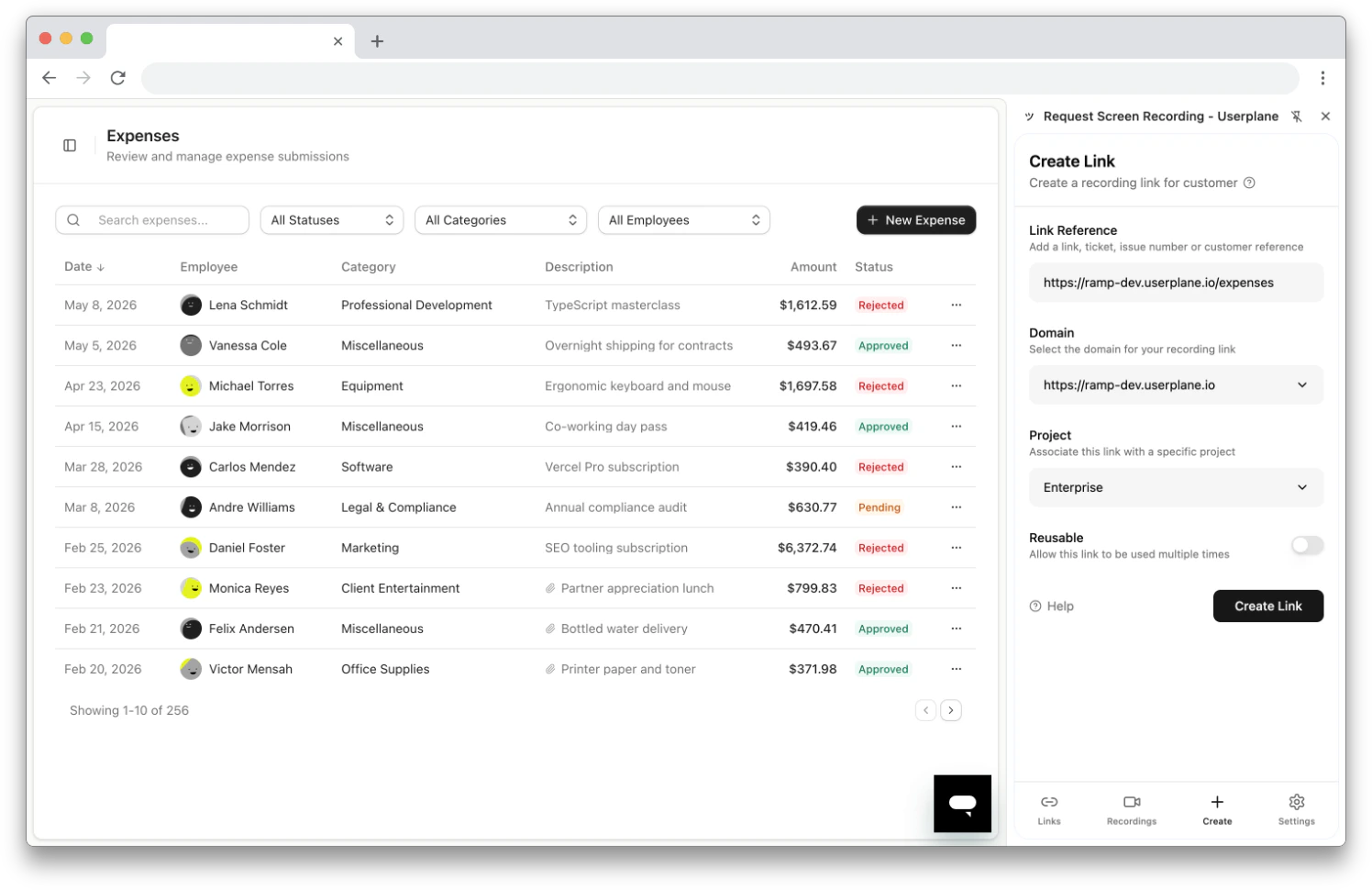
Create Link form with prefilled reference from the current tab
Create Link Shortcut
Displays your current keyboard shortcut for opening the Create Link form (default:Cmd+Shift+Y on Mac, Ctrl+Shift+Y on Windows/Linux).
Click to open chrome://extensions/shortcuts where you can customize the shortcut to a different key combination.
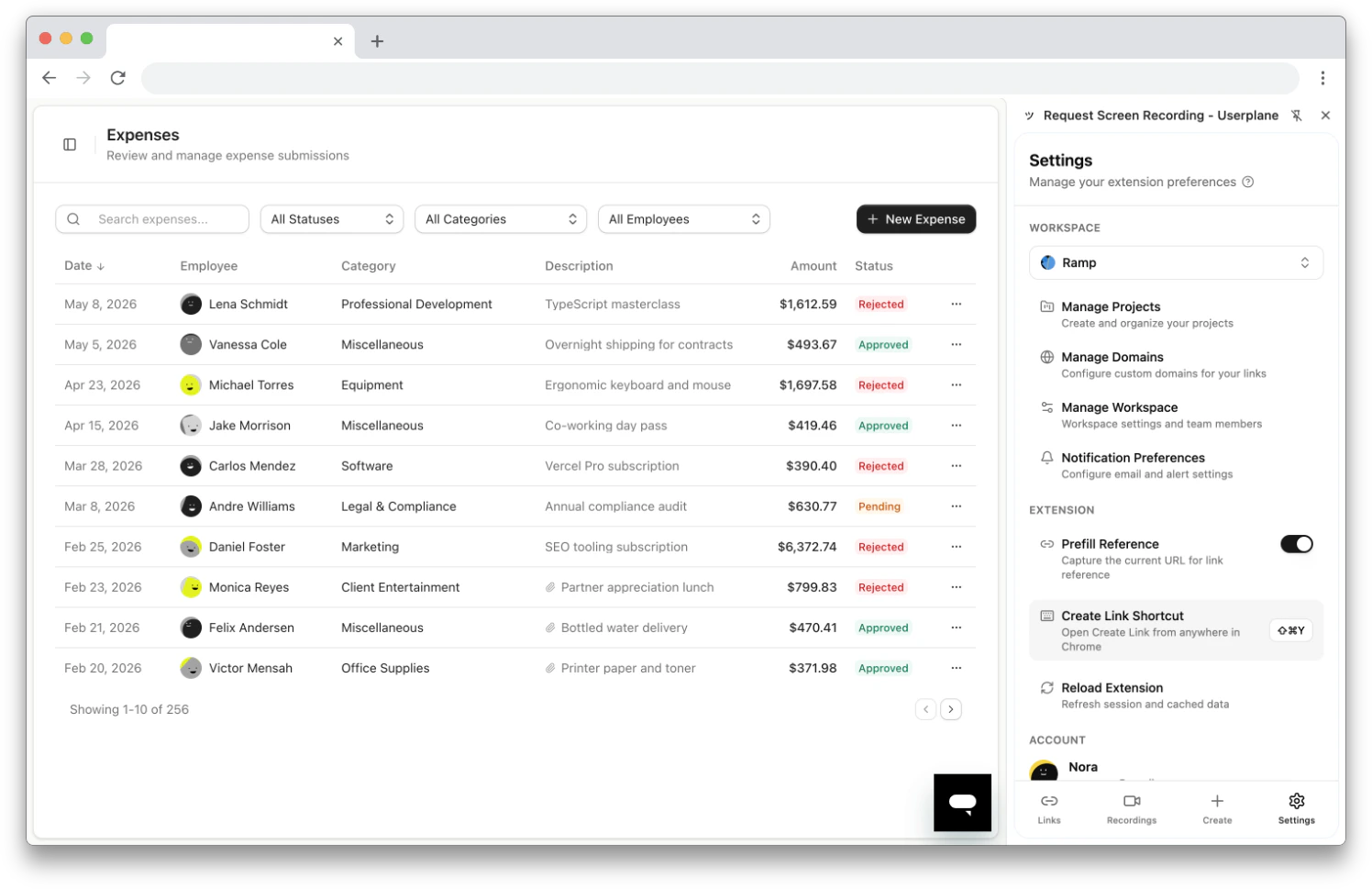
Create Link Shortcut setting
Reload Extension
Refreshes the session and clears all cached data. Use this when:- Data in the side panel appears stale or out of date.
- A recent dashboard sign-in hasn’t been picked up by the extension.
- Troubleshooting an issue with the extension.
Reload Extension setting
Account
- User info — shows your name, email, and avatar.
- Help — opens the Userplane documentation.
- Log out — signs you out of the extension. Your session is cleared from Chrome storage.
Logging out of the extension does not sign you out of the Userplane dashboard. To sign out of
both, log out of the dashboard separately.
Related articles
- Chrome Extension — installation and overview.
- Chrome Extension Side Panel — full guide to creating and managing links.
- Chrome Extension Shortcuts — keyboard shortcuts, context menus, and omnibox.