

What the extension does
- Opens as a Chrome side panel for creating, managing, and sharing recording links.
- Supports a keyboard shortcut (
Cmd+Shift+Yon Mac,Ctrl+Shift+Yon Windows/Linux) to open the Create Link form instantly. - Provides right-click context menus for creating links and navigating to links or recordings.
- Includes an omnibox command — type
userplanein the address bar, then a reference — to jump straight to link creation with a pre-filled reference. - Auto-populates the link reference field with the current page URL (configurable in settings).
- Supports workspace switching for teams with multiple workspaces.
The Chrome extension is a management tool — it does not record the screen itself. Customers record
by clicking the recording link you share with them.
Installing the extension
1
Install from the Chrome Web Store
Find Userplane in the Chrome Web Store and click Add to Chrome.
2
Pin the extension
Click the Extensions icon (puzzle piece) in the Chrome toolbar and pin Userplane so it’s always visible.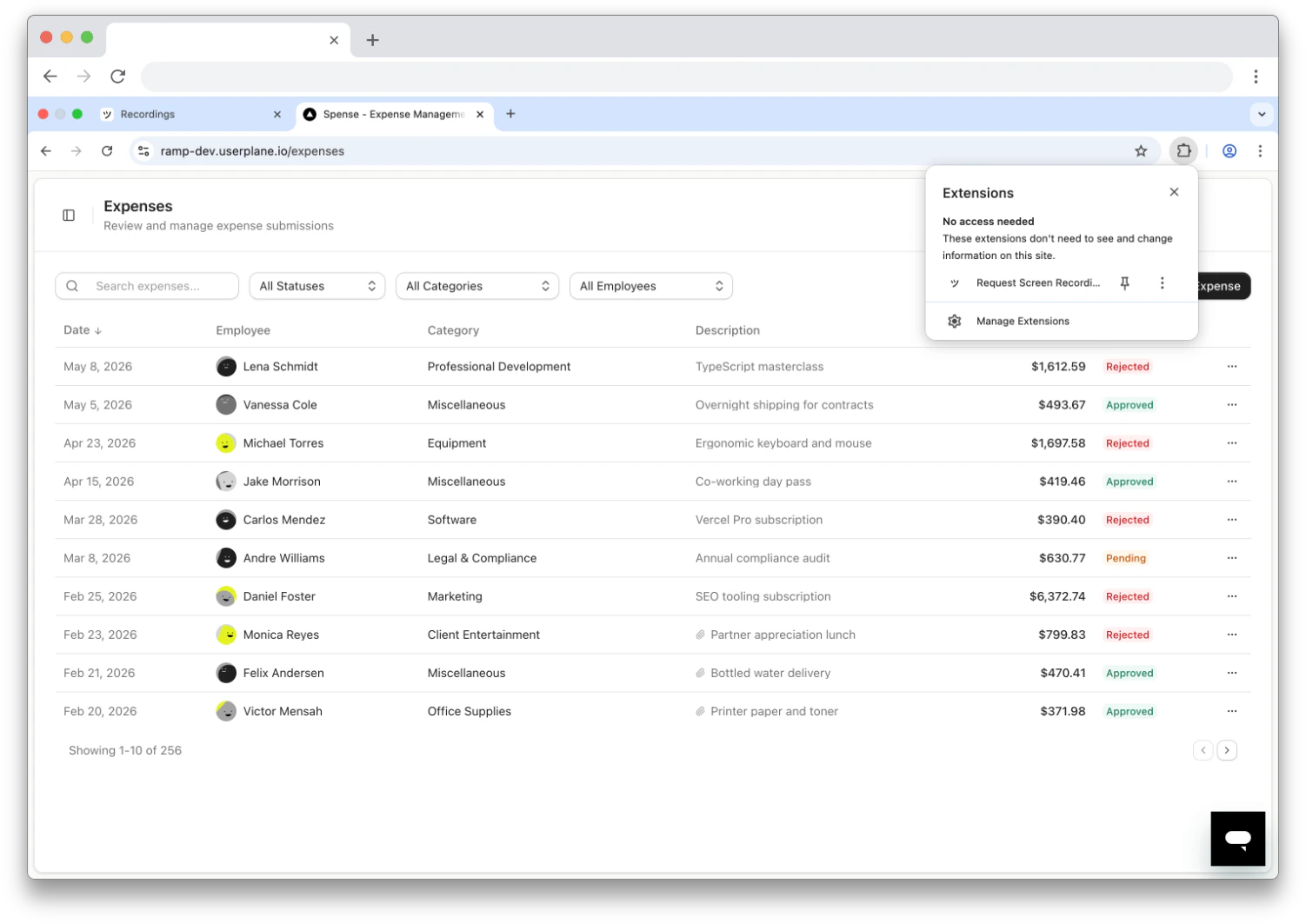
Pin the Userplane extension
3
Open the side panel
Click the Userplane icon in the toolbar. The side panel opens on the right side of your browser window.
Signing in
1
Click Sign In
On first open, the side panel shows a login prompt. Click Sign in to continue.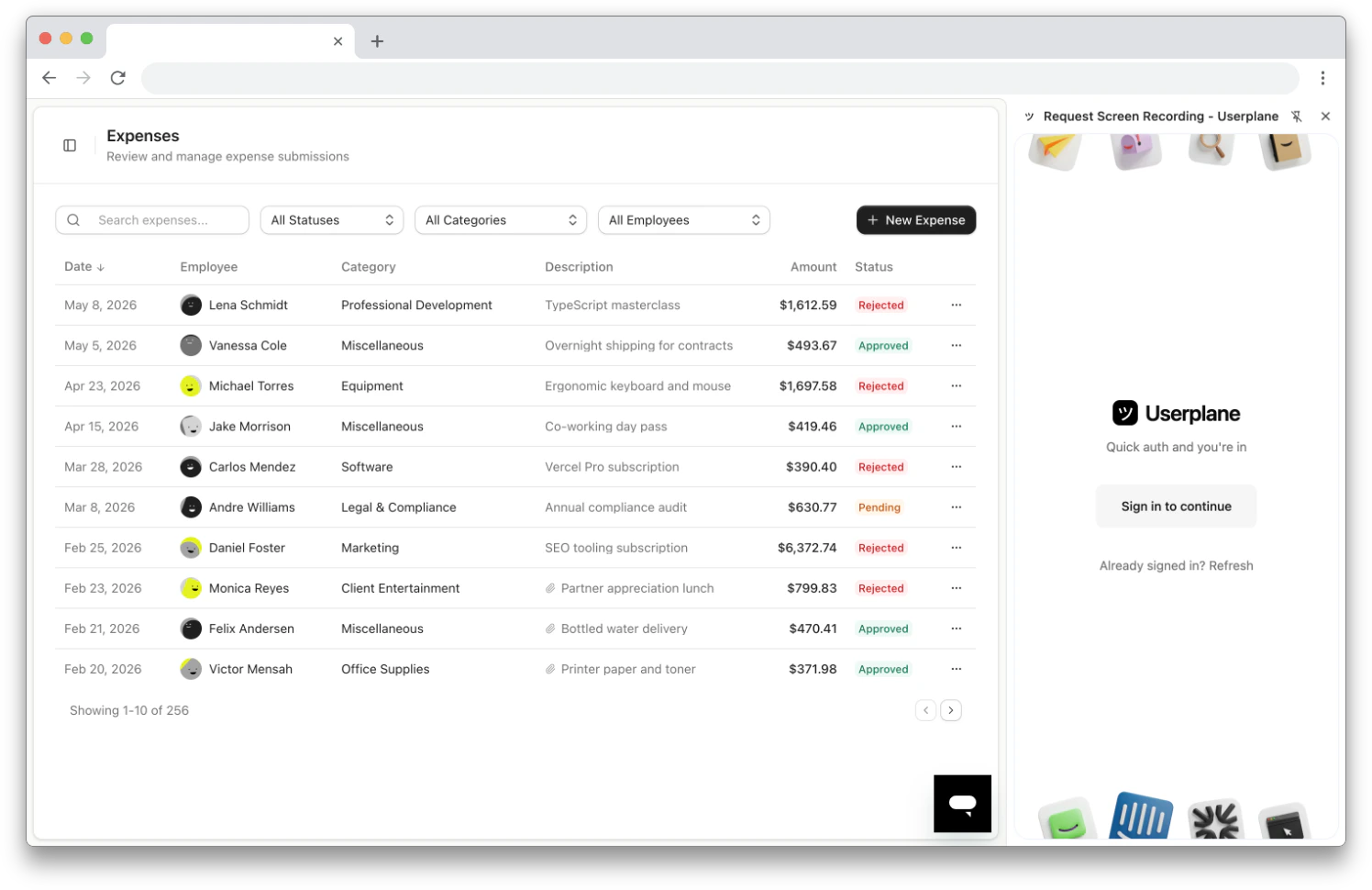
Extension login prompt
2
Authenticate via the dashboard
A new tab opens to the Userplane dashboard. Sign in with your account.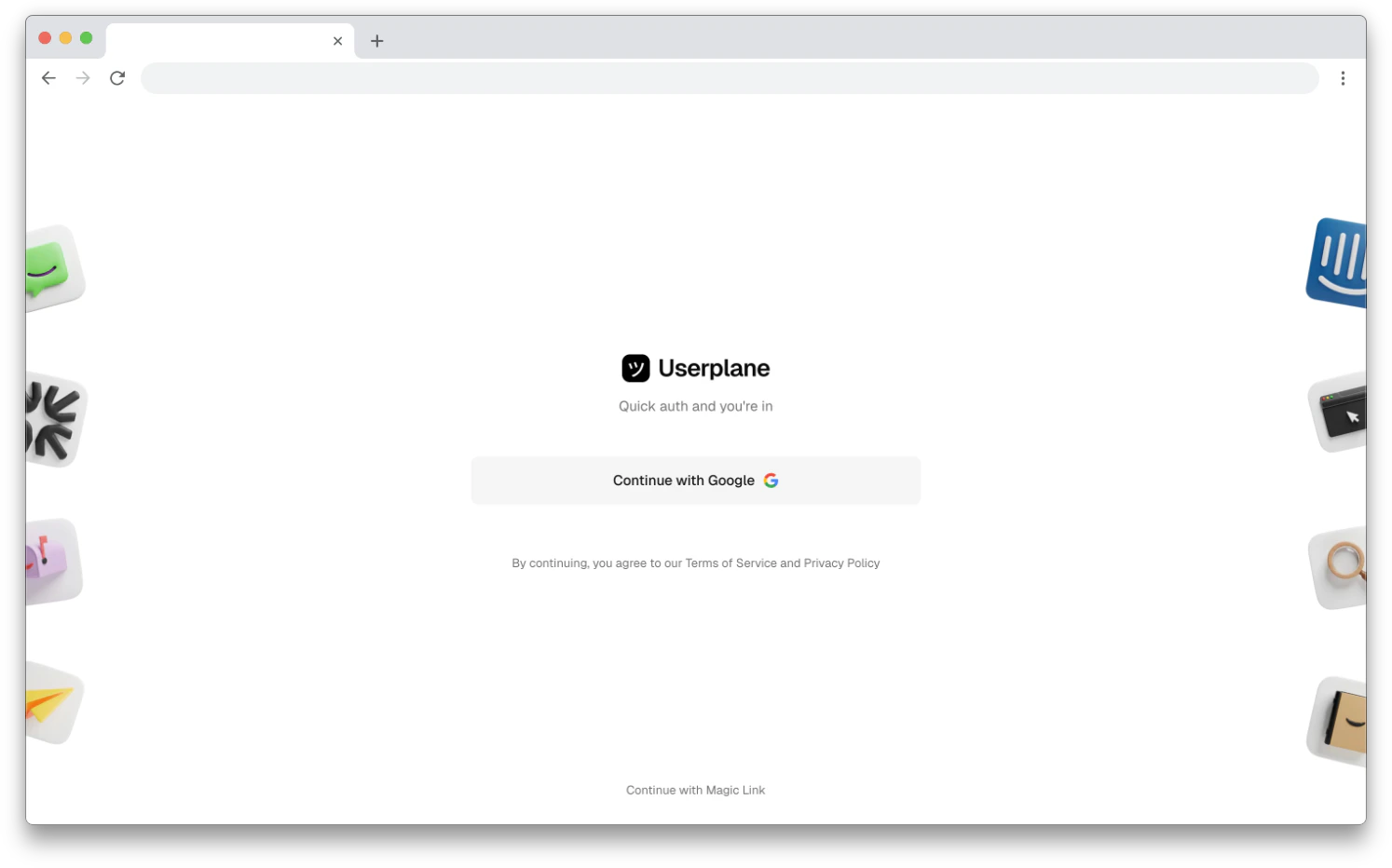
Sign in via the Userplane dashboard
3
Return to the side panel
Return to the side panel. If it hasn’t updated, click Already signed in? Refresh.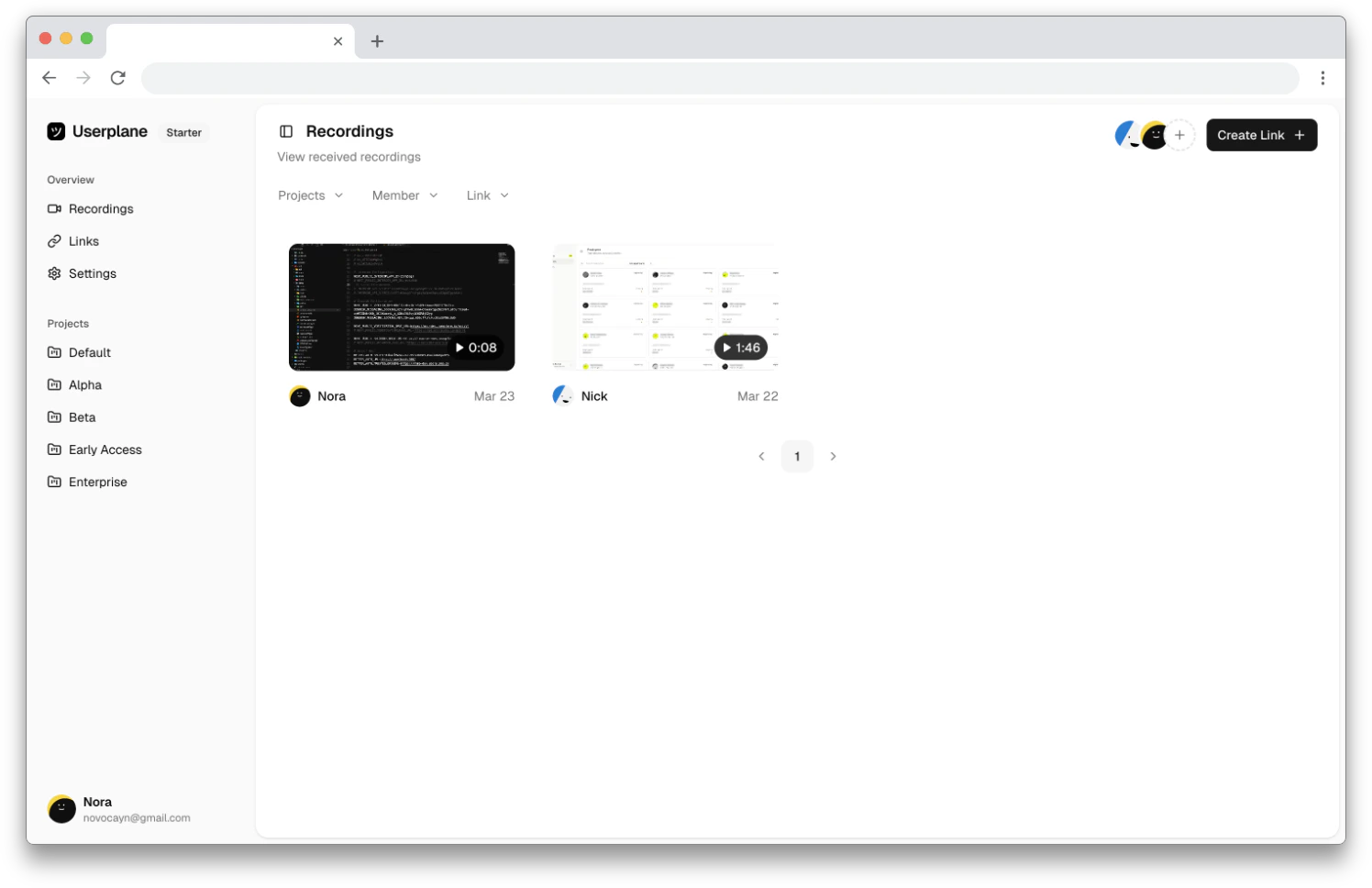
Userplane dashboard after sign-in
4
Select your workspace
If you belong to multiple workspaces, select the one you want to use. You can switch workspaces later from the Settings tab.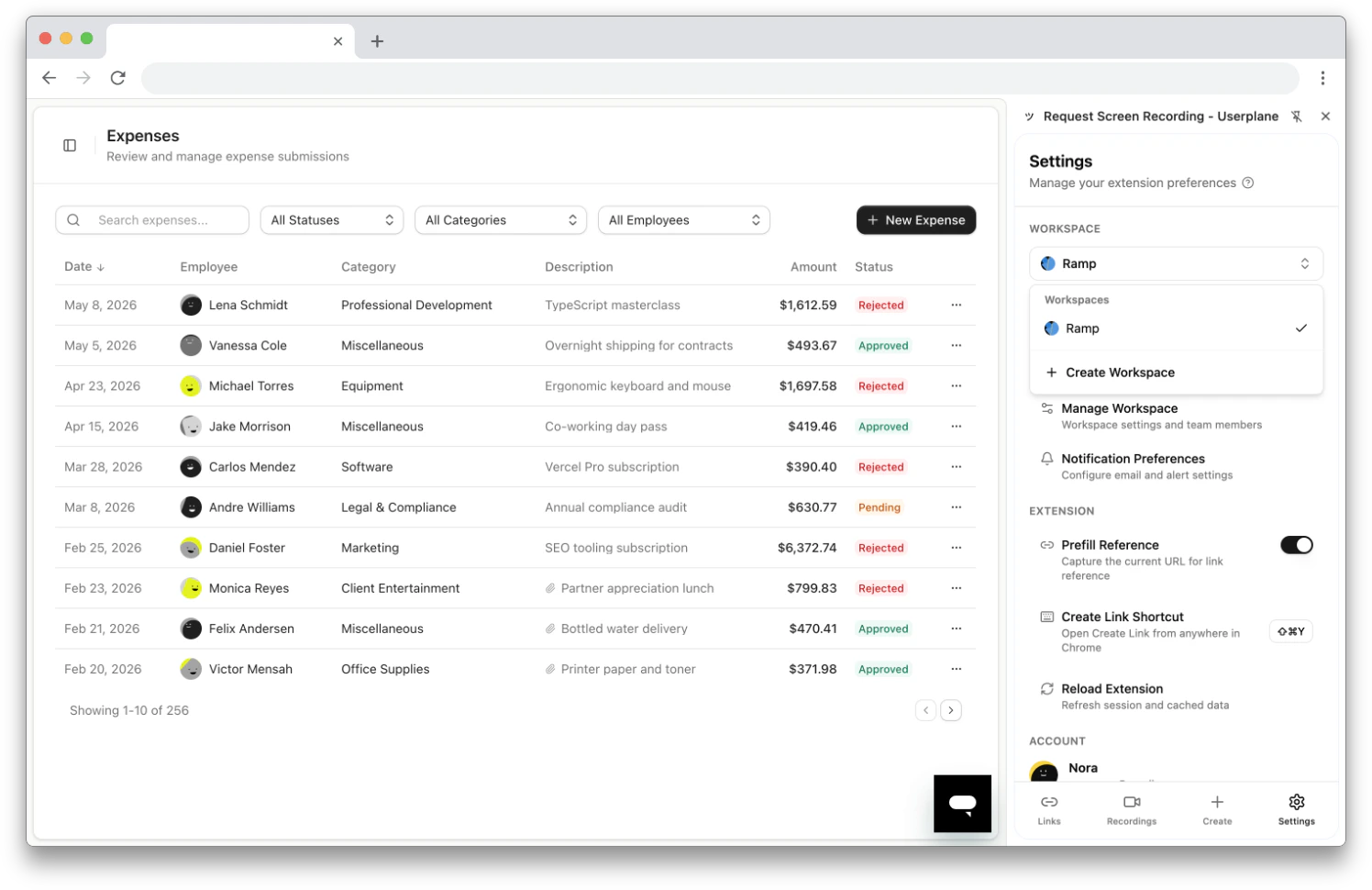
Workspace selector
Extension permissions
When you install the extension, Chrome grants the following permissions:
The extension also communicates with the Userplane API to fetch and manage your workspace data.
If you don’t have a workspace yet, the extension prompts you to create one.
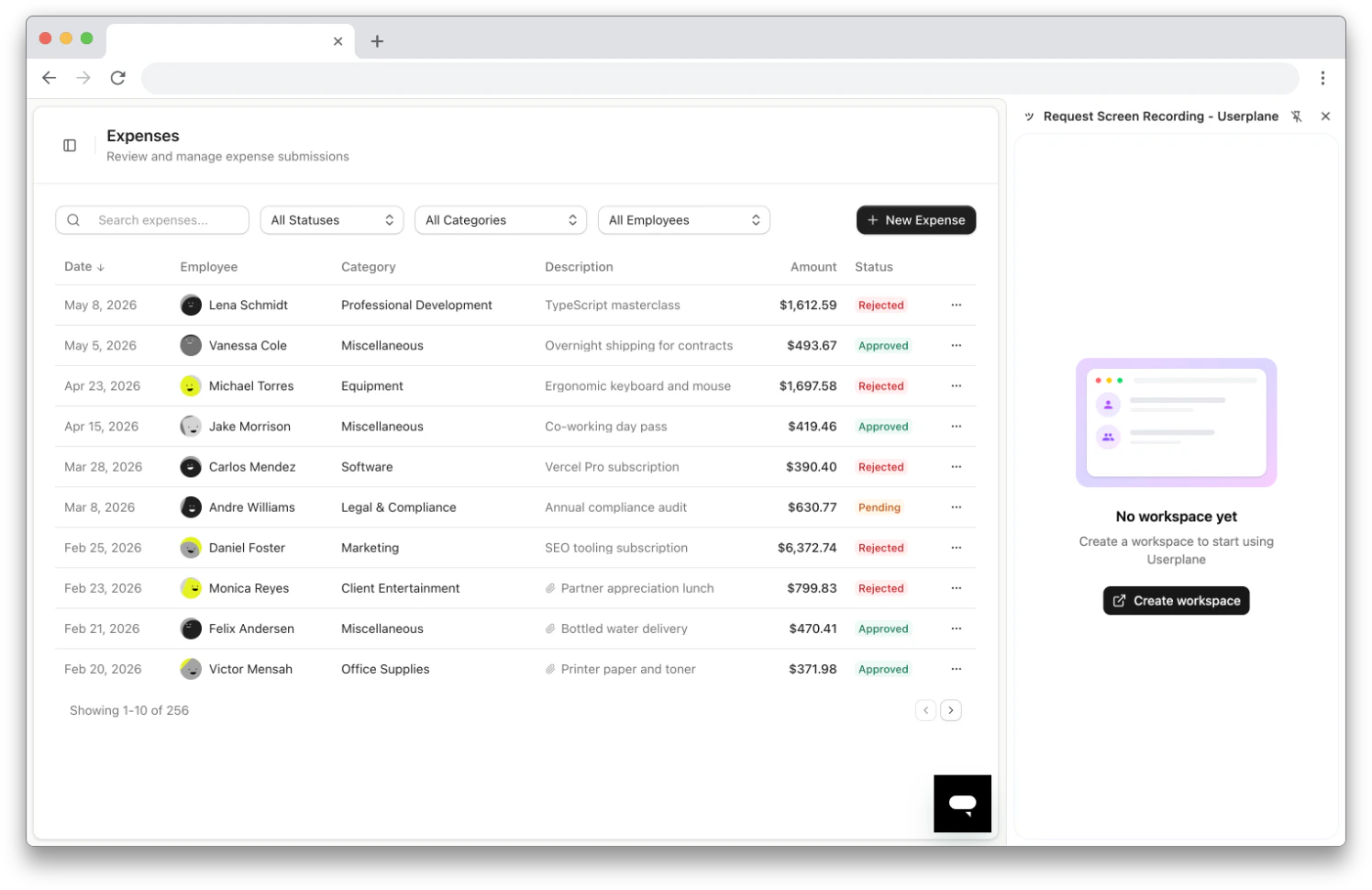
No workspace yet — create one to get started
Requirements
- Google Chrome (or Chromium-based browsers like Edge)
- A Userplane workspace account
Related articles
- Chrome Extension Side Panel — overview of the side panel navigation and views.
- Chrome Extension Link Creation — all the ways to create links from the extension.
- Chrome Extension Link Management — browse, filter, edit, and delete links.
- Chrome Extension Recordings — browse and review received recordings.
- Chrome Extension Shortcuts — quick reference for all access methods.
- Chrome Extension Settings — configure workspace, preferences, and account settings.
- Help Desk Setup — connect your help desk to Userplane.
- Other Help Desks — use the extension alongside any help desk.